
Reports
Getting started with Reports
Last updated 12 October 2026
Reports brings sales, finance, appointments, team, clients, stock and marketing together in one place.
Reports brings sales, finance, appointments, team, clients, stock and marketing together in one place.
Find a report
- 1Select Reports in the left-hand menu.
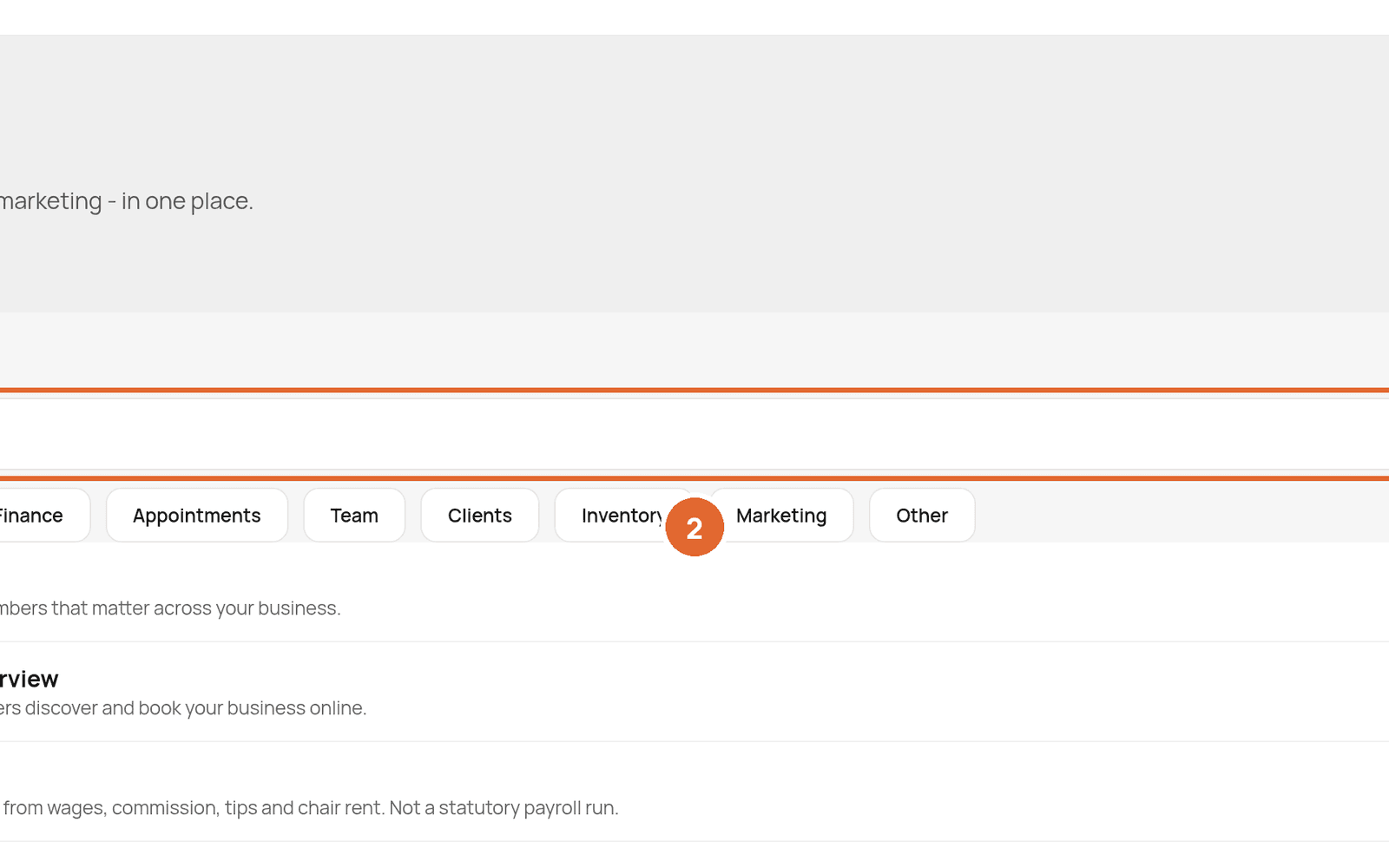
- 2Use Search reports, or choose a category: Sales, Finance, Appointments, Team, Clients, Inventory, Marketing or Other.
- 3Select a report to open it.
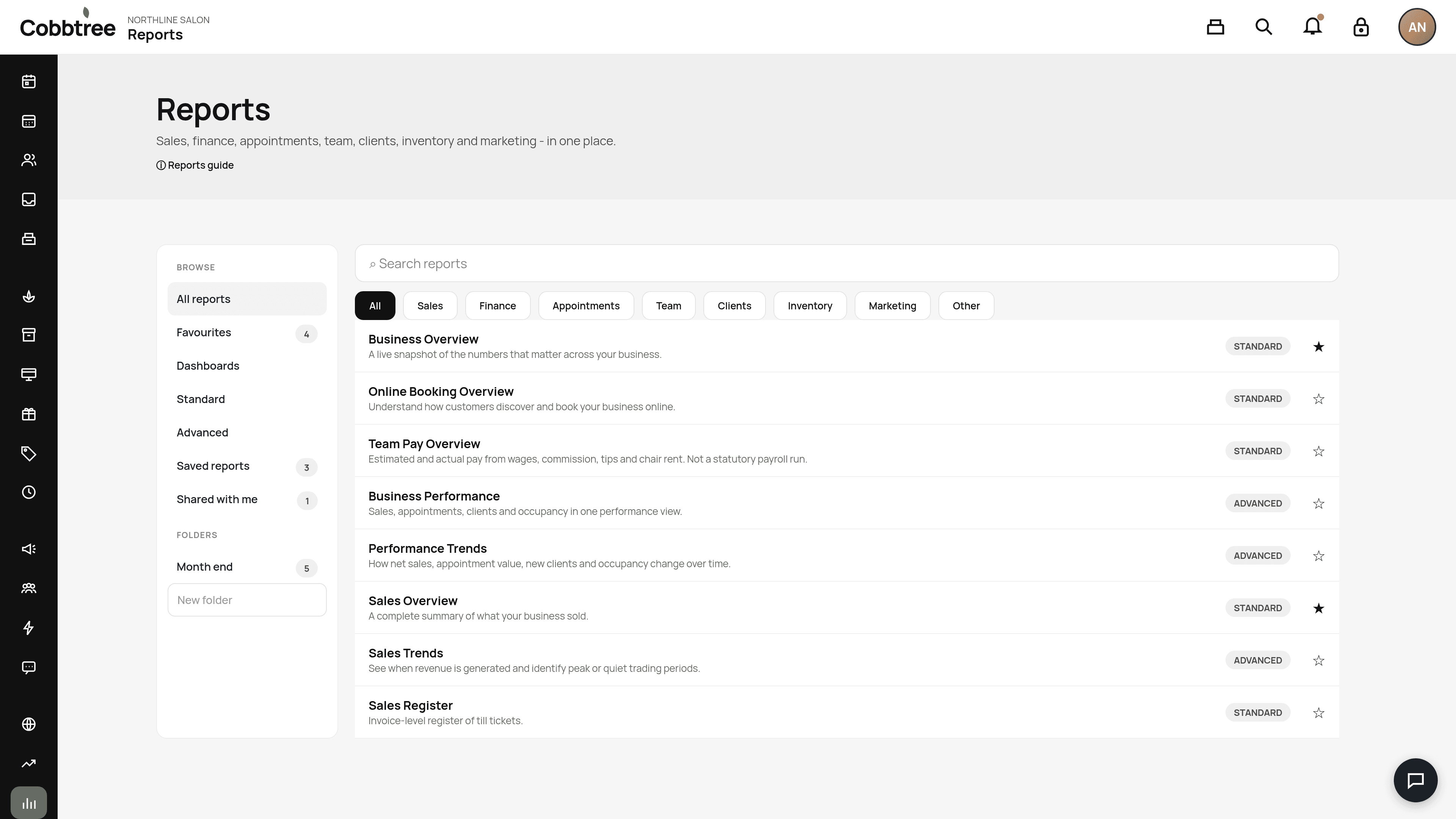
Popular reports include Business Overview, Online Booking Overview, Team Pay Overview, Sales Overview and Sales Register (every till receipt). Standard reports are ready to use. Advanced reports, like Business Performance and Performance Trends, go into more detail.
Save your favourites
Select the star (3) to add a report to Favourites.
Save a view
Open a report, set the filters you use often, then Save this view. It appears under Saved reports. Saving a view doesn't change the original report.
Folders
Folders are your own shortlists. Type a name in New folder (4), open the folder, then use the folder icon on a report to add it. Deleting a folder doesn't delete its reports.
Export
Every report downloads as CSV, Excel or PDF, using the filters on screen.
Good to know
- Select a figure to see the appointments or sales behind it.
- Finance reports cover VAT, how clients paid and payouts.
- Appointment reports always use the booked price.
Related: Team Pay reports · Run pay and record payouts
Was this article helpful?