
Team and pay
Add your team
Last updated 12 October 2026
Add everyone who works with you so they can log in, appear on the calendar and take bookings.
Add everyone who works with you so they can log in, appear on the calendar and take bookings.
Add a team member
- 1Select Team in the left-hand menu.
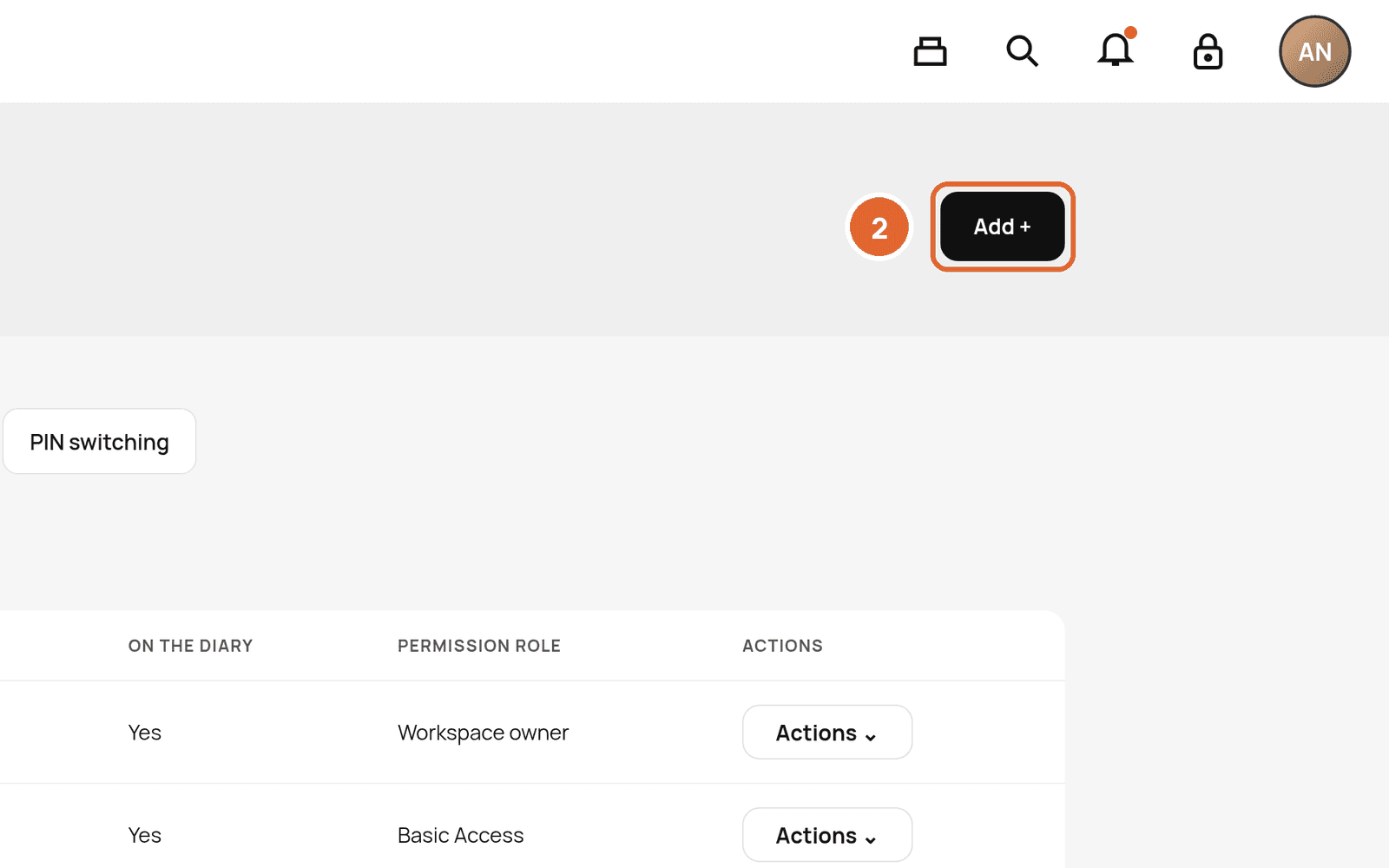
- 2Select Add +.
- 3Enter their name and email, then choose their permission role and the locations they work at.
- 4Send the invite. They'll show as INVITED until they accept.
Before they can be booked
Each person needs working hours before they appear in online booking. Set these in Rota (2). See Set working hours with Rota.
The team list
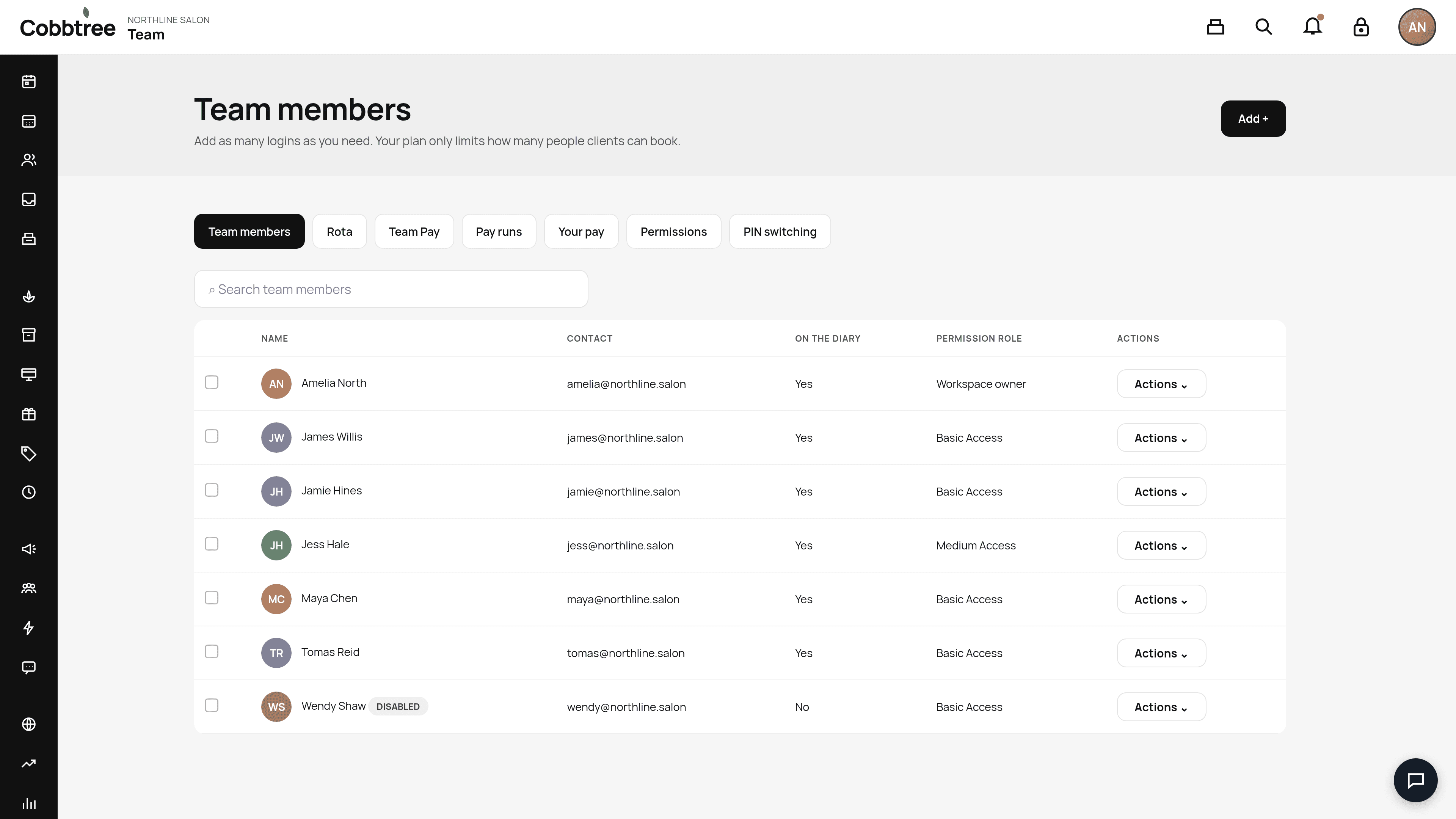
For each person, you can see their contact details, whether they're on the calendar, and their permission role (for example Workspace owner, Medium Access, Basic Access or No access). Use Actions (4) to edit or disable someone. Disabled people show a DISABLED label.
Good to know
- You can add as many logins as you need. Your plan only limits how many people clients can book.
- Set what each role can do in Permissions. See User roles and permissions. 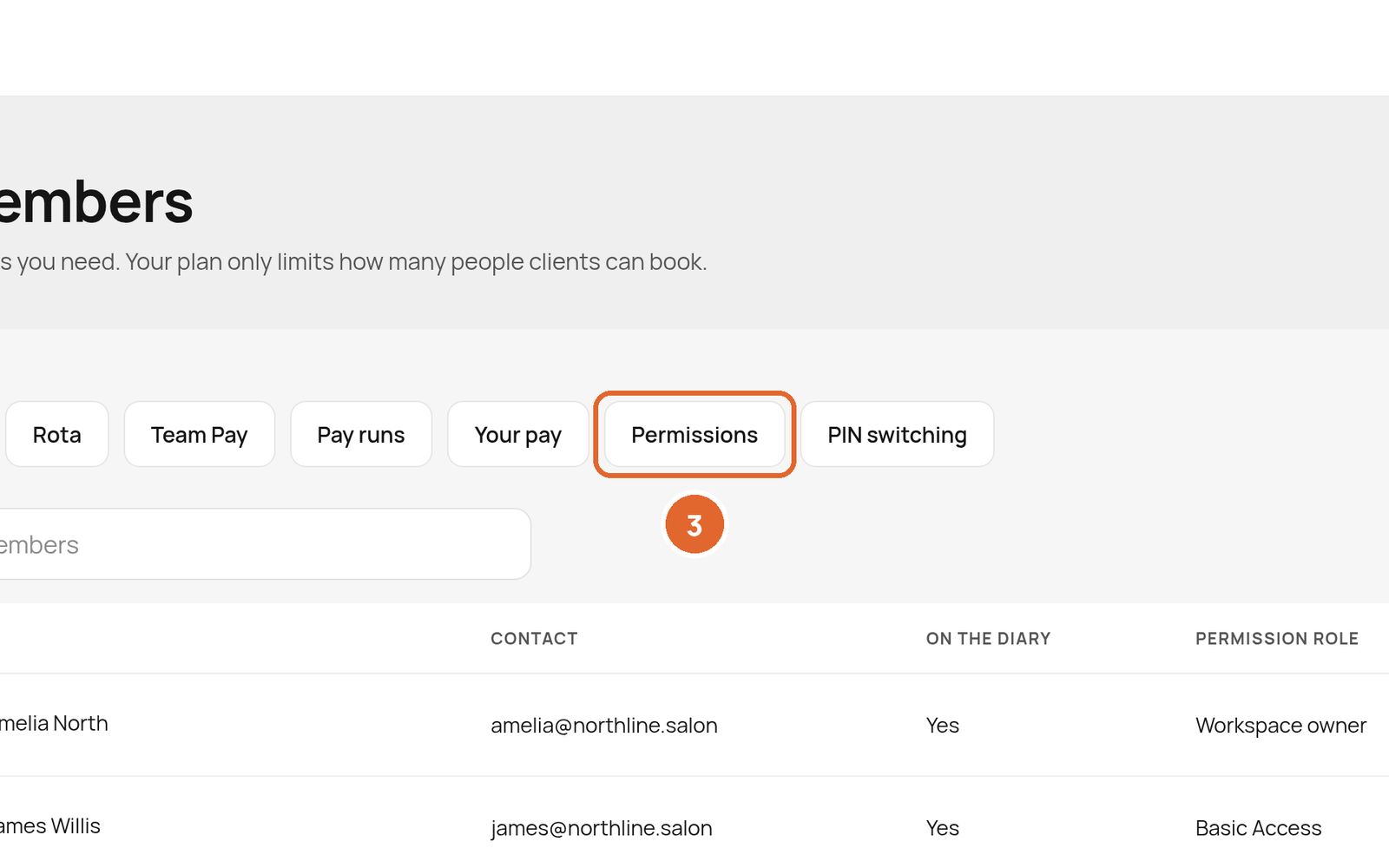
- The tabs also include Team Pay, Pay runs, Your pay and PIN switching.
Related: Set working hours with Rota · User roles and permissions
Was this article helpful?