
Team and pay
Set working hours with Rota
Last updated 22 October 2026
Rota is your team's working pattern. It decides who can take appointments each day, both on the calendar and online.
Rota is your team's working pattern. It decides who can take appointments each day, both on the calendar and online.
Open Rota
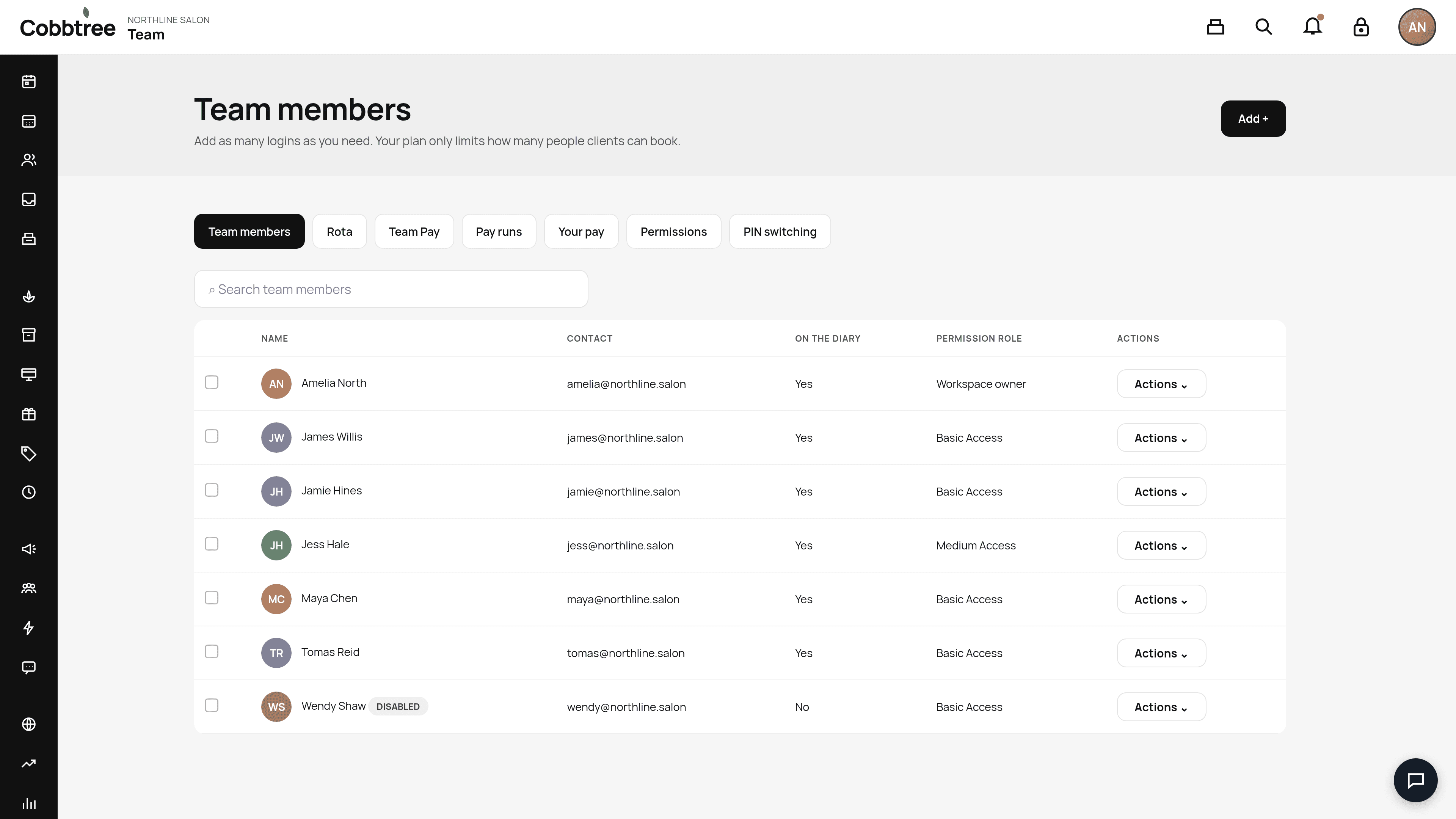
Go to Team, then the Rota tab (2). You'll see who's working, who's off, who's on leave and any changes from their normal hours.
Set someone's regular hours
- 1Select the team member's name.
- 2Choose weekly, fortnightly or four-weekly. For rotating patterns, choose the date week 1 starts.
- 3Set their hours and save.
Saving starts from the date you choose, so past weeks keep their old hours. You can copy another person's pattern. It's a copy, so later changes to theirs won't affect it.
Change a single day
Tap a day to set working hours, not working, holiday or sick. A small marker shows when a day is different from normal. Revert to normal hours undoes it.
To change lots of days at once, choose Select, then tap the days (or drag on a computer). Use the bar at the bottom to set hours, days off, leave, sickness, or training and meetings.
Sick days and time off
The calendar is the simplest place to mark someone away. Open their name on the Calendar, then choose Add sick day or Add time off, and tap the days. Those days show on their column and cannot be booked.
A sick day runs until the end of that day. Time off can be a whole day, several days, or part of one day. Select the label on their column later if you need to change the days or remove it.
You can still mark holiday or sick from Rota. Use Rota when you are already editing someone's hours.
Good to know
- If a change would leave existing appointments outside working hours, Cobbtree stops and lists them. It never cancels them.
- Leave for part of a day keeps the rest of the day bookable.
- Rota doesn't decide whether leave is paid. Team Pay has its own rules.
- On iPhone, Rota shows today or the week as cards. On iPad in landscape, you get the full grid.
Related: Add your team · Mark someone sick or on time off · Block time and closed periods
Was this article helpful?