
Checkout and payments
Connect and use a card reader (WisePad 3)
Last updated 12 October 2026
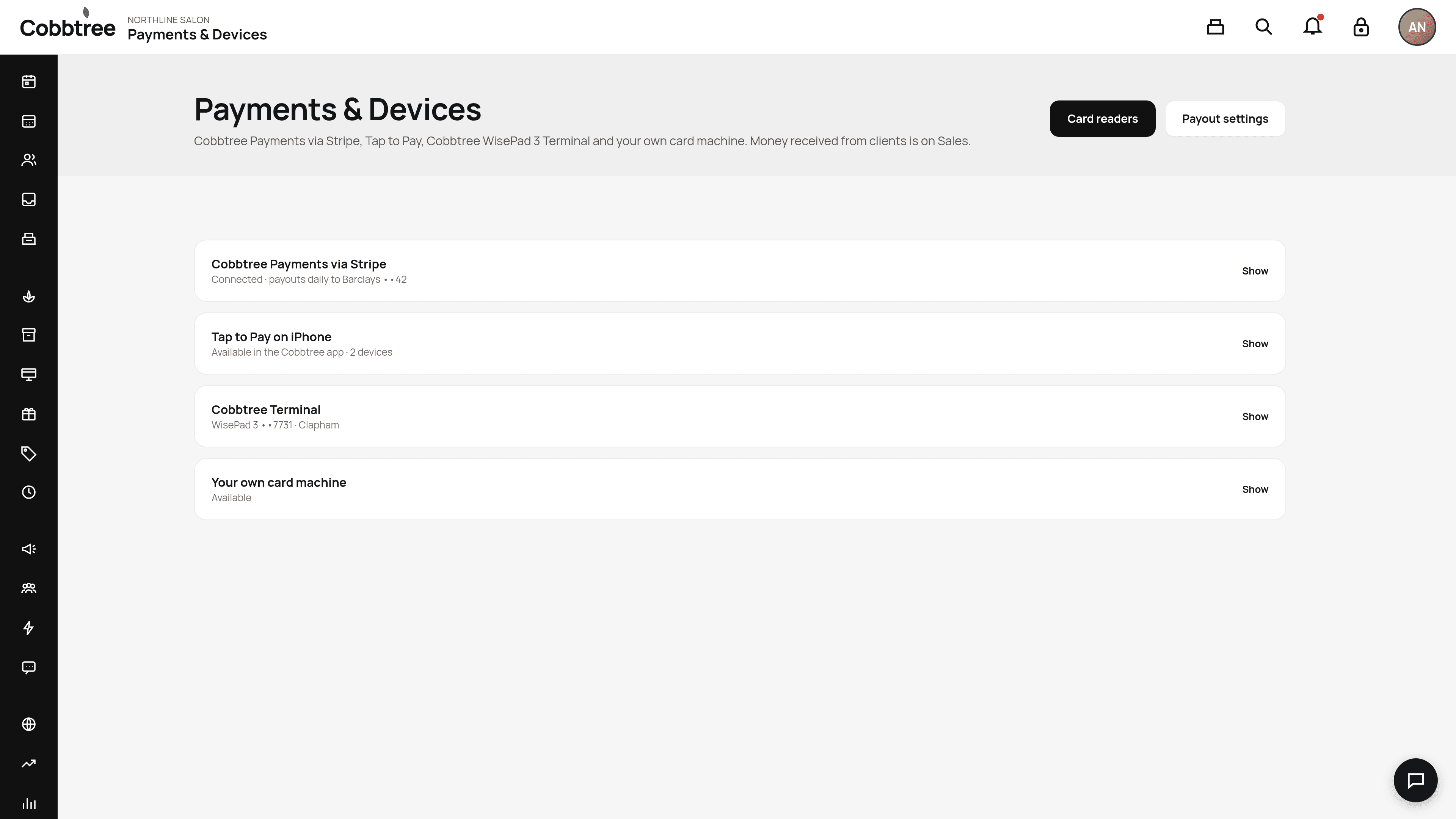
Cobbtree Terminal is the BBPOS WisePad 3. It takes tap and chip-and-PIN payments through the same till sale as Tap to Pay.
Cobbtree Terminal is the BBPOS WisePad 3. It takes tap and chip-and-PIN payments through the same till sale as Tap to Pay.
Connect the reader
- 1Turn the WisePad 3 on and keep it next to your phone.
- 2In the Cobbtree app, tap Connect terminal.
- 3Choose Cobbtree WisePad 3 Terminal (shown with the last four digits of its serial number) and tap Connect.
Don't pair the reader in your phone's Bluetooth settings. Cobbtree connects to it directly, and pairing it in Settings usually stops that working.
Connected readers appear in Payments & Devices (2 → Card readers). Tap a reader to see its battery, serial number, connection and software version. Each reader is linked to your current location.
Troubleshooting
- Can't find the reader? Turn it on, keep it close, turn Bluetooth on and scan again. If it was paired in Bluetooth settings, forget it there first.
- Keeps disconnecting? Keep it in range, or tap Connect card reader again. Switching business or location disconnects it on purpose.
- Update won't install? Charge the reader, and don't take payments during an update.
- Payment declined? The sale stays unpaid. Try again on the same sale.
Related: Tap to Pay · Take a payment at the till
Was this article helpful?