
Checkout and payments
Take a payment at the till
Last updated 12 October 2026
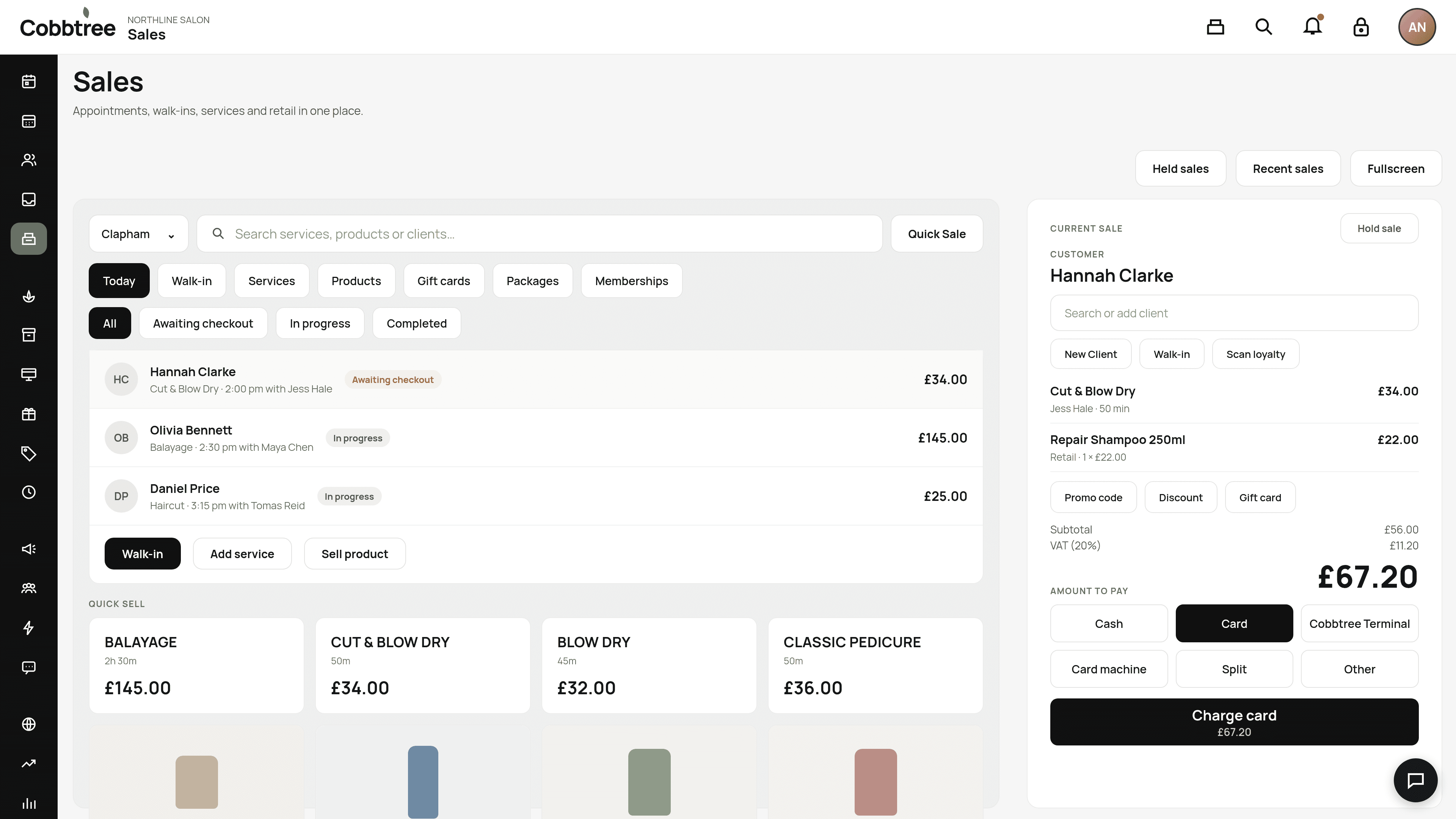
The Sales page is your till. Use it for appointments, walk-ins, services and retail.
The Sales page is your till. Use it for appointments, walk-ins, services and retail.
Take a payment
- 1Select Sales in the left-hand menu, or Take payment on the Today page.
- 2Start a sale. Choose an appointment from the list, select Walk-in, or select a Quick sell item such as a service or product.
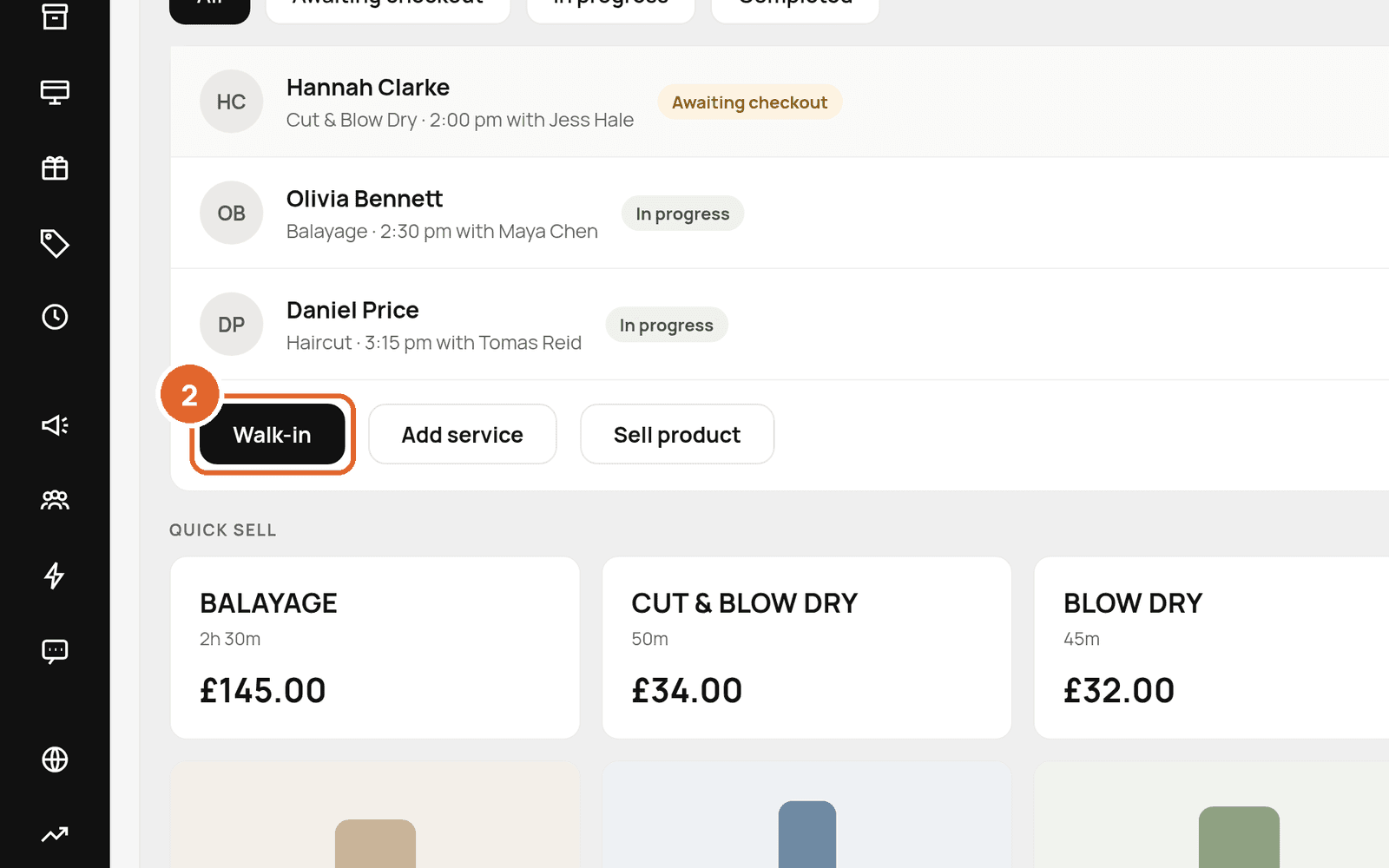
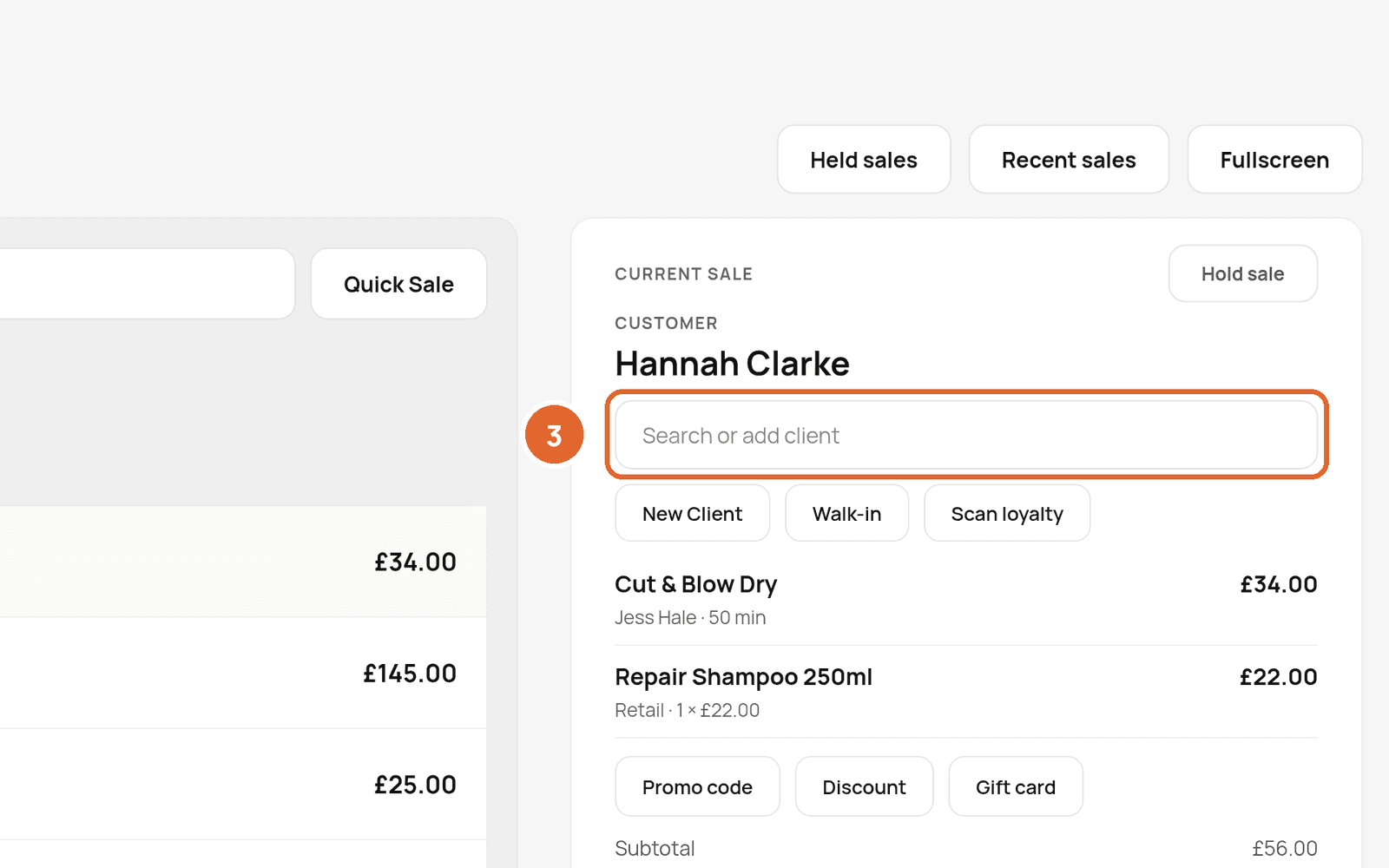
- 3Add the client with Search or add client. You can also choose New Client, Walk-in or Scan loyalty.
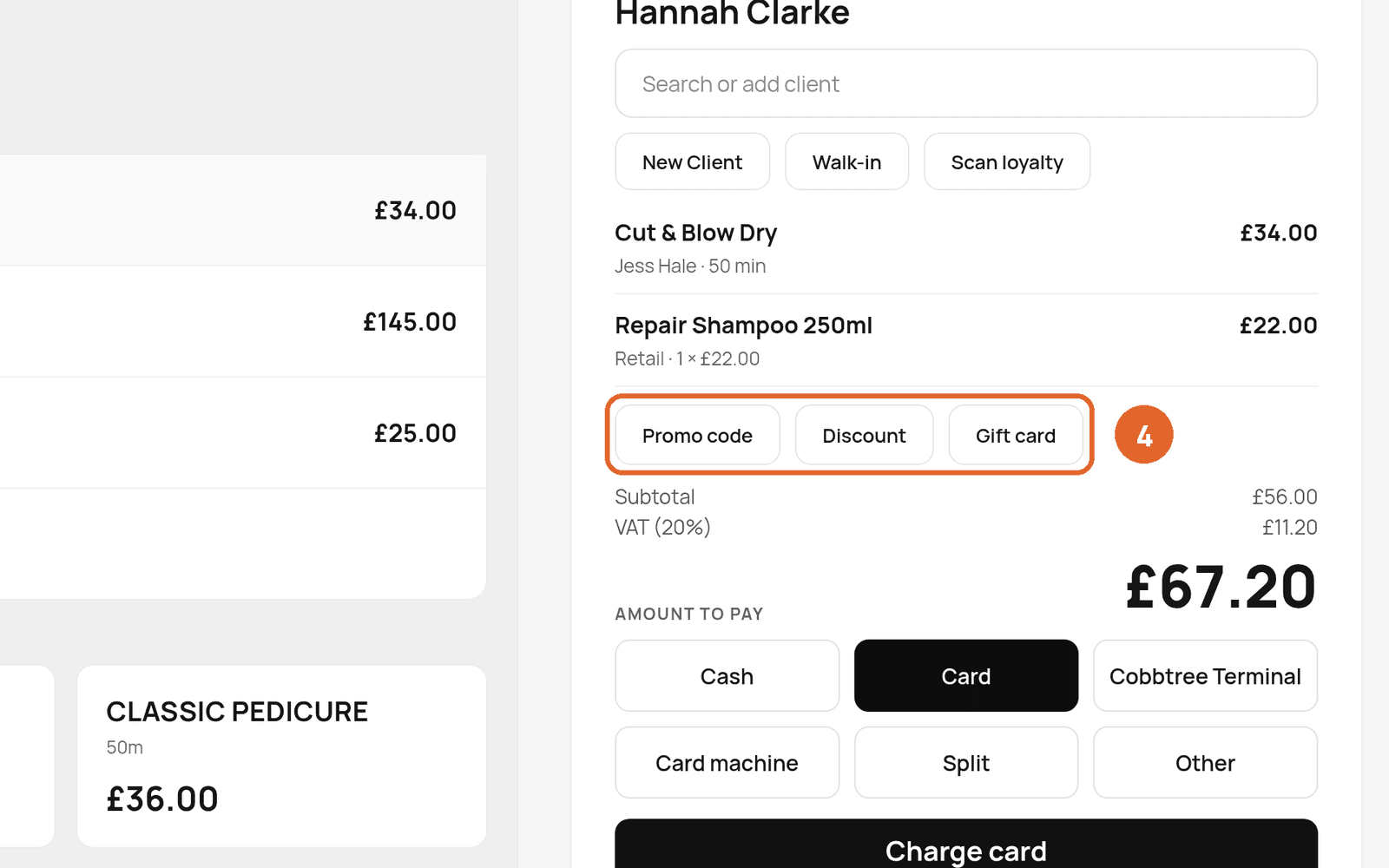
- 4Add a Promo code, Discount or Gift card if you need to.
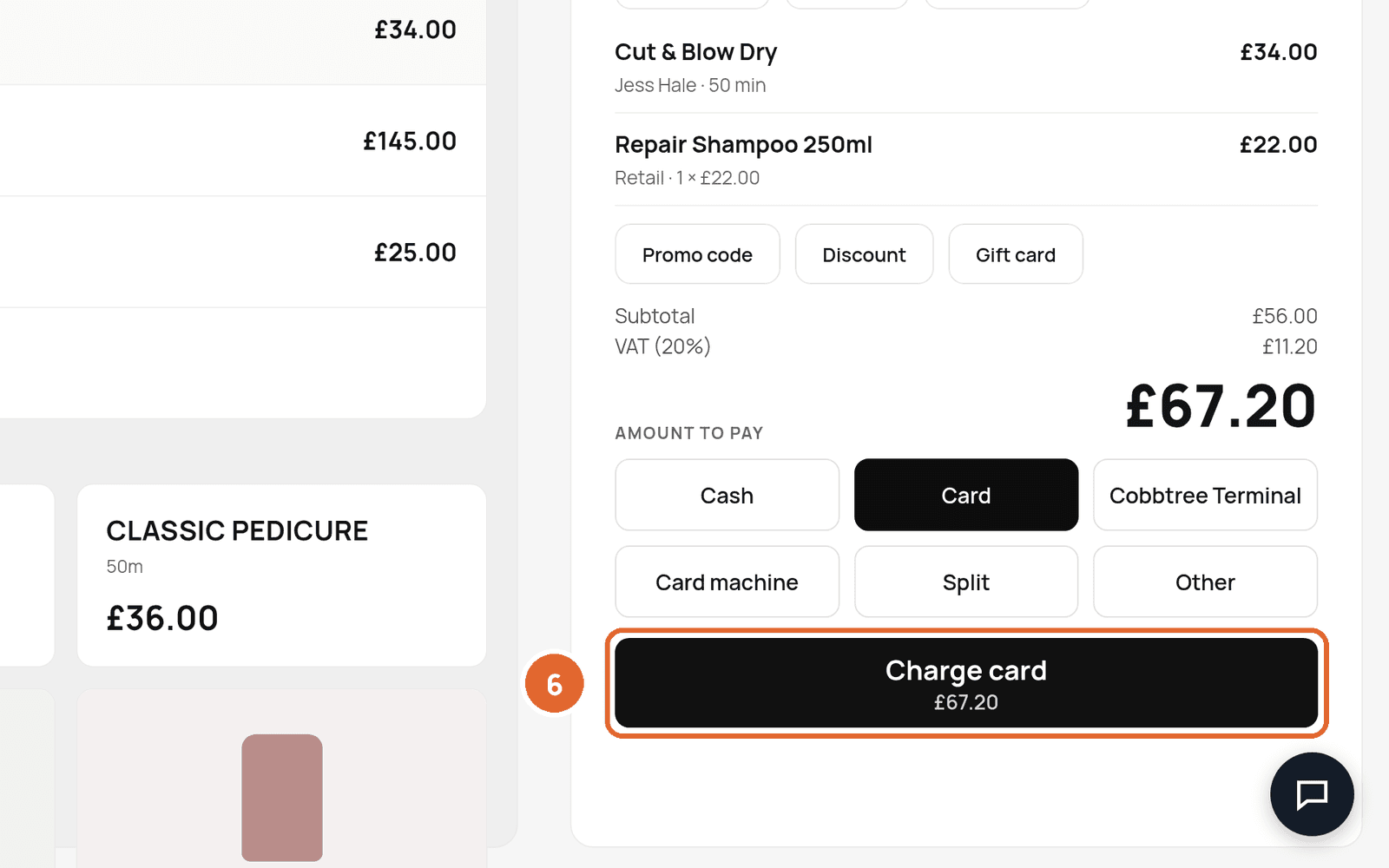
- 5Choose how the client is paying: Cash, Card, Cobbtree Terminal, Card machine, Split or Other.
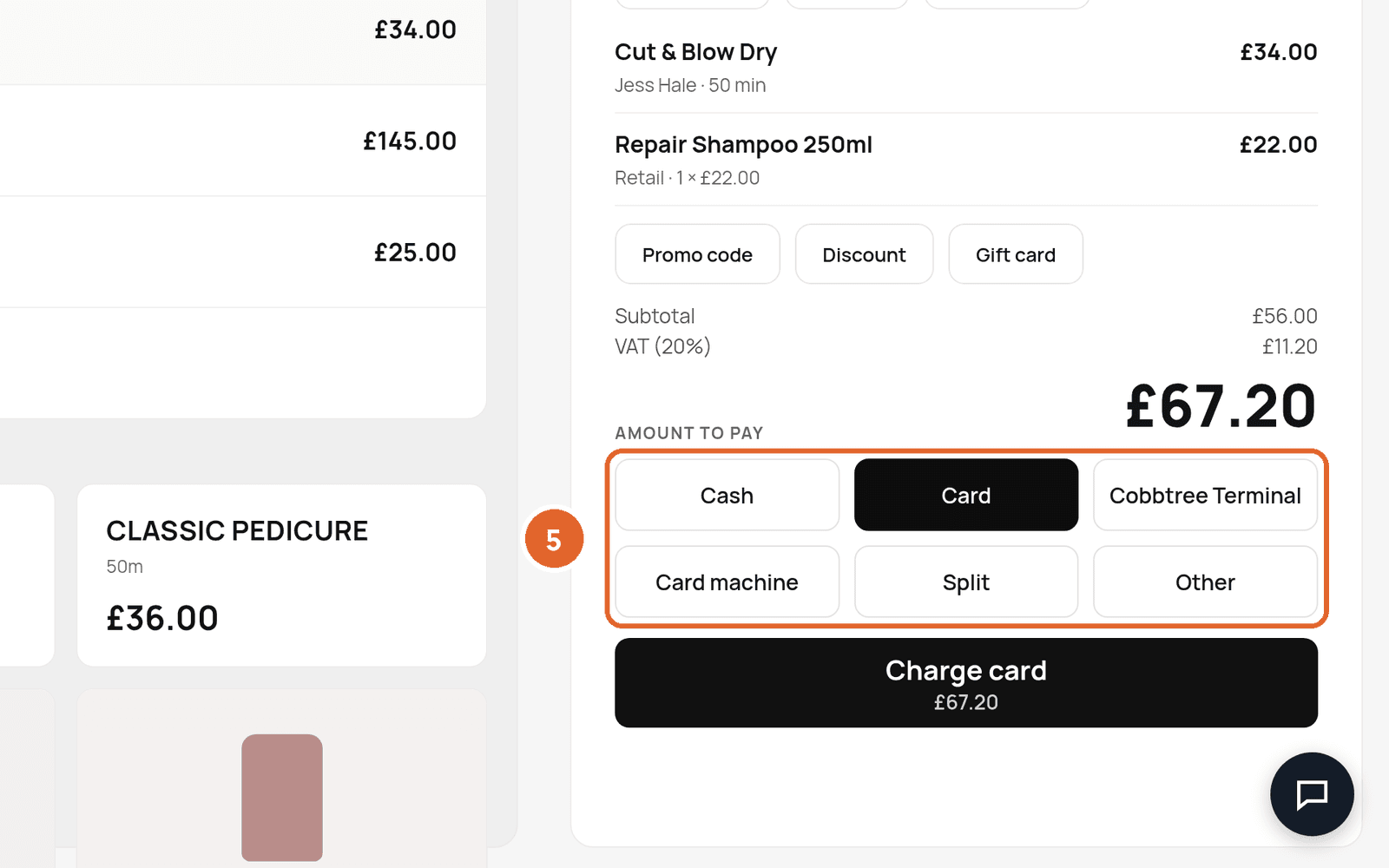
- 6Complete the sale. With cash, for example, the button says Take exact cash.
Which payment button should I use?
- Card: the client pays by card through Cobbtree Payments.
- Cobbtree Terminal: you're using a WisePad 3 connected through the Cobbtree app.
- Card machine: you took the payment on your own machine. Cobbtree records it as a card payment but doesn't connect to that machine.
- Cash: Cobbtree records the payment without charging Stripe.
Other tools on the till
Held sales lets you park a basket and come back to it from any till. Recent sales shows completed sales. Fullscreen hides the menu. You can filter by Today, Walk-in, Services, Products, Gift cards, Packages and Memberships.
Good to know
- Test mode means no real money will move.
- Stock at the selected location goes down when the sale completes.
- If the client has a membership, it appears above the sale lines and any perks they're entitled to are applied automatically.
Related: Refund a payment · Connect Stripe · Customise receipts
Was this article helpful?