
Messages and marketing
SMS credits and settings
Last updated 12 October 2026
Cobbtree sends appointment texts and marketing texts for you. You don't need an account with an SMS provider.
Cobbtree sends appointment texts and marketing texts for you. You don't need an account with an SMS provider.
Check your credits
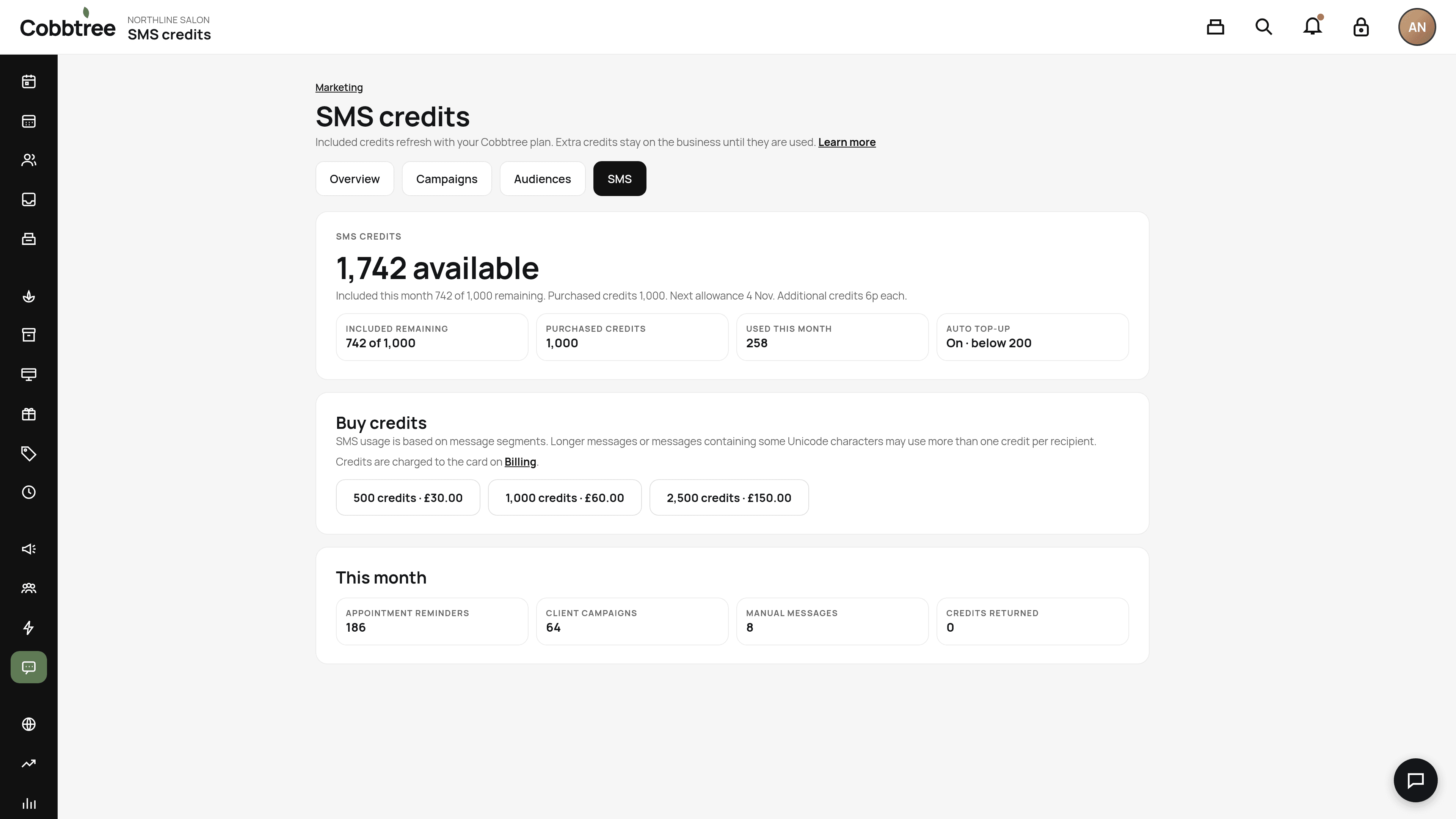
Go to Marketing → SMS (1). You'll see credits available, included remaining, purchased credits, used this month and whether auto top-up is on.
How credits work
- Your plan includes credits each month for the whole business. Unused included credits don't carry over.
- Included credits are used first, then purchased ones. Purchased credits never expire.
- One credit is one SMS segment. A short text is usually 1 credit (up to 160 characters). Emoji switch the message to a format that allows only 70 characters per segment, so it may use more credits.
Buy more credits
- 1Add a card in Billing first.
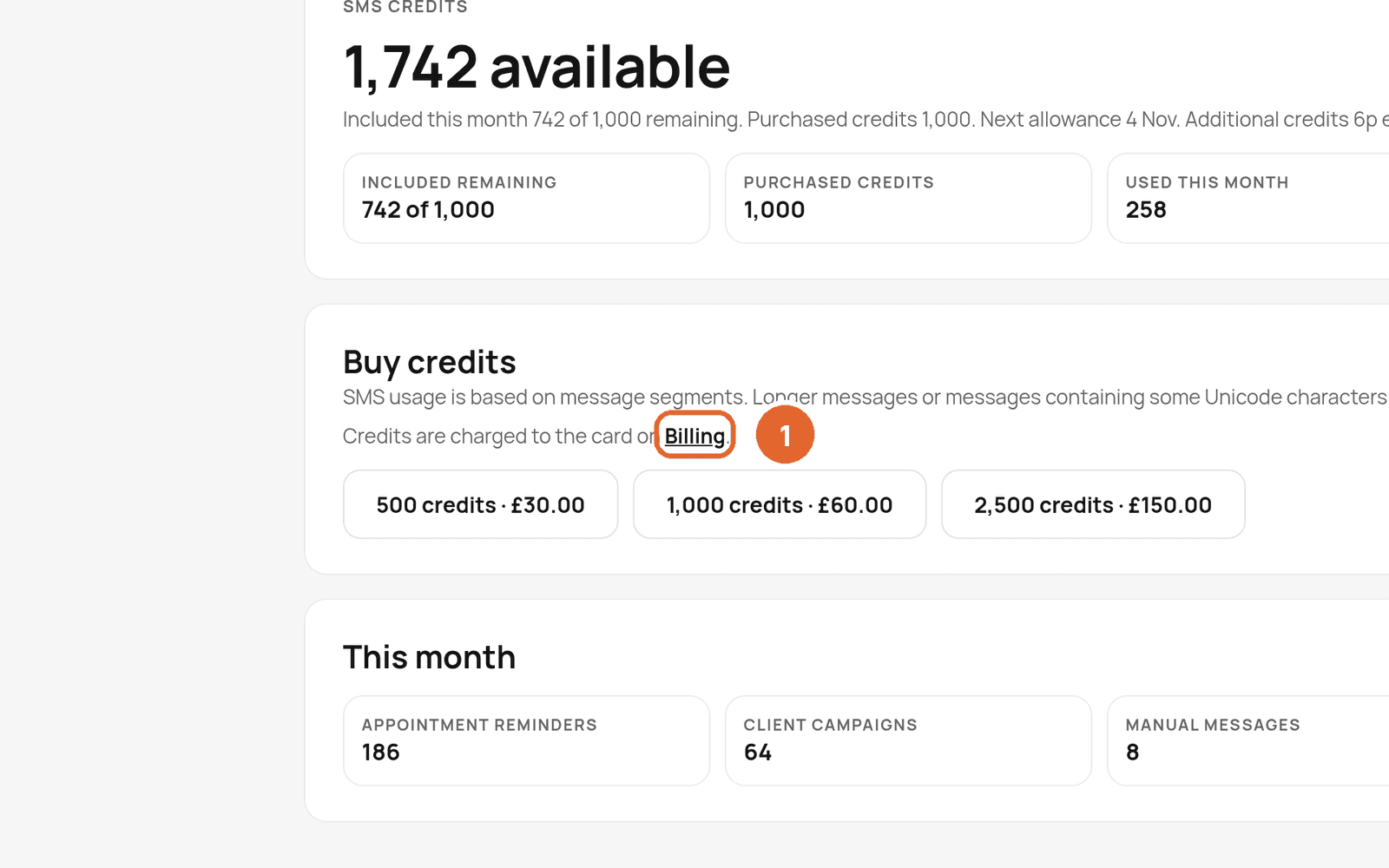
- 2Under Buy credits, choose a pack. VAT is added.
Credits are added once payment goes through. You need billing permission to buy credits.
Automatic top-up is off until an owner turns it on. You choose a balance threshold, a pack and a monthly limit.
Turn SMS on or off
In Marketing → SMS, use the SMS messaging switch. Turning it off stops future texts and keeps your settings and history. Use the location picker to manage each location.
Choose which texts are sent
Turn individual service and marketing texts on or off, or use Enable all / Disable all. Edit wording under Templates, if your plan allows it.
Related: Send a campaign · Why a message wasn't sent
Was this article helpful?