
Calendar and appointments
Block time and closed periods
Last updated 22 October 2026
Blocked time stops clients booking a slot without changing someone's normal working hours. Use it for lunch, training or a meeting, while they are still at work that day.
Blocked time stops clients booking a slot without changing someone's normal working hours. Use it for lunch, training or a meeting, while they are still at work that day.
If they are away, use Add sick day or Add time off on their name in the calendar instead. A sick day runs until the end of the day. Time off can be one day, several days, or part of a day.
Block time
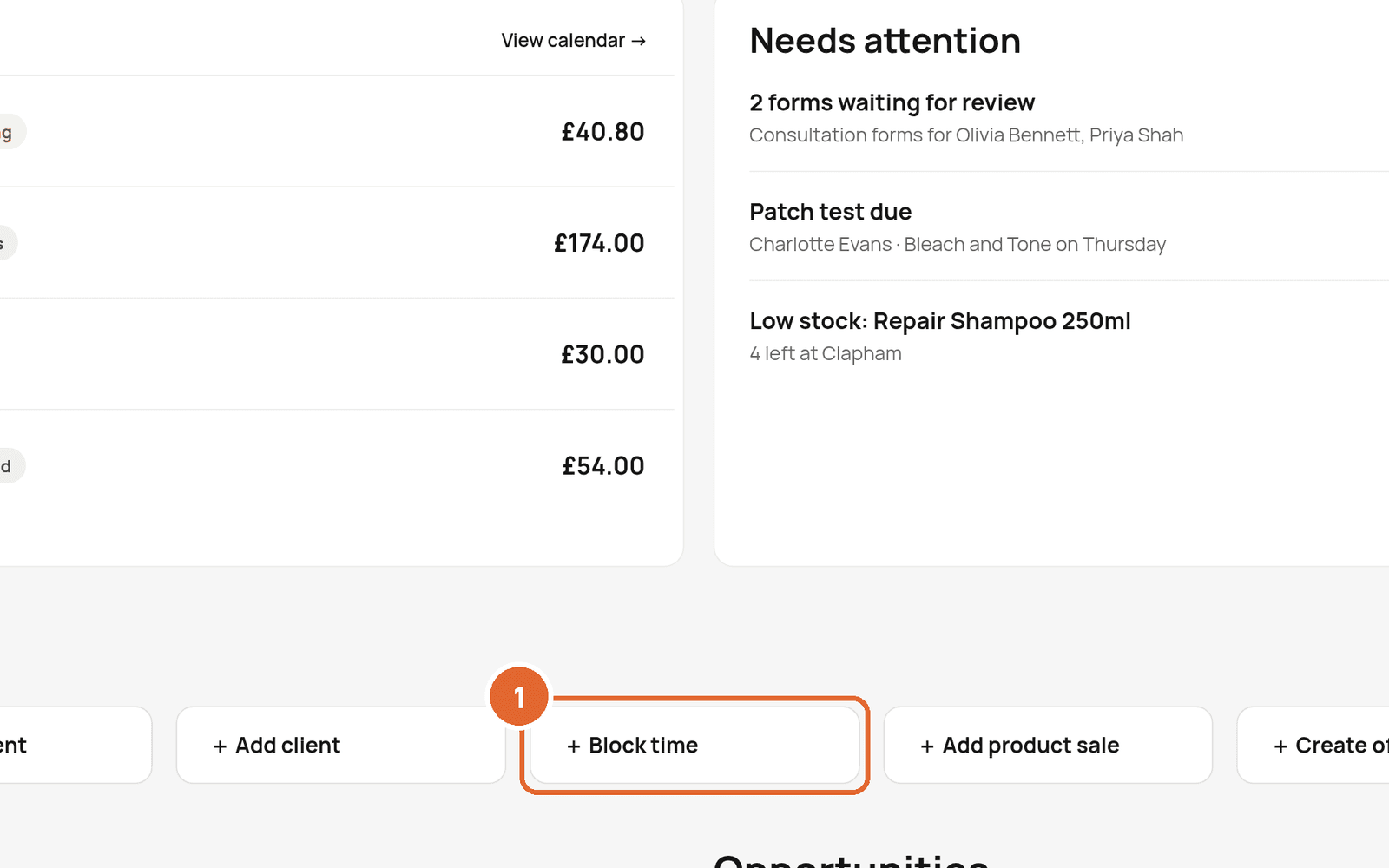
- 1On Today, select Block time in Quick actions. You can also use Add on the Calendar.
- 2Choose the team member, date and time.
- 3Choose a type and save.
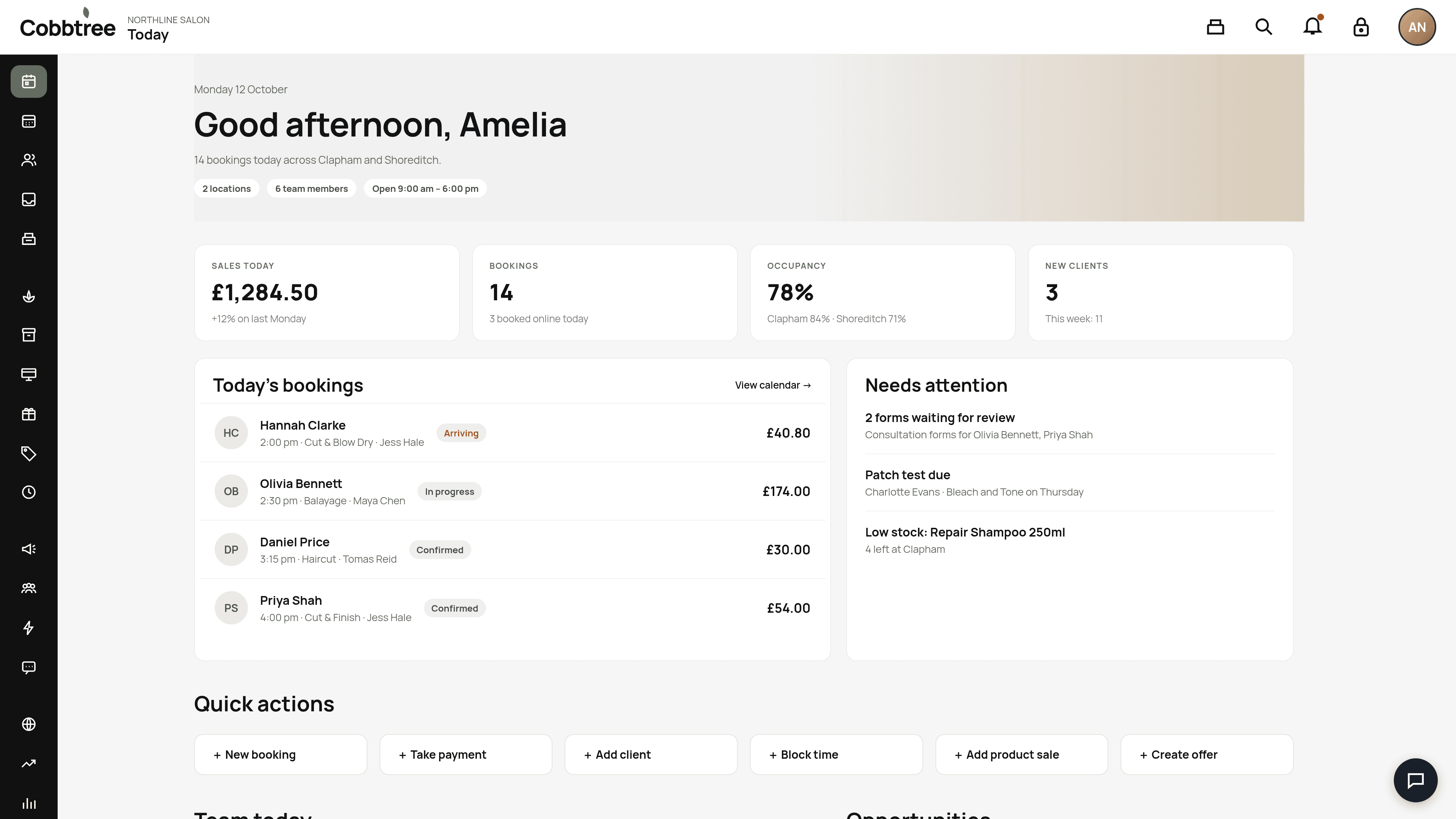
The day still counts as a working day, but that window can't be booked. Weekly and monthly repeating meetings are supported. You can edit one event, this and future events, or the whole series from the calendar.
Set up blocked time types
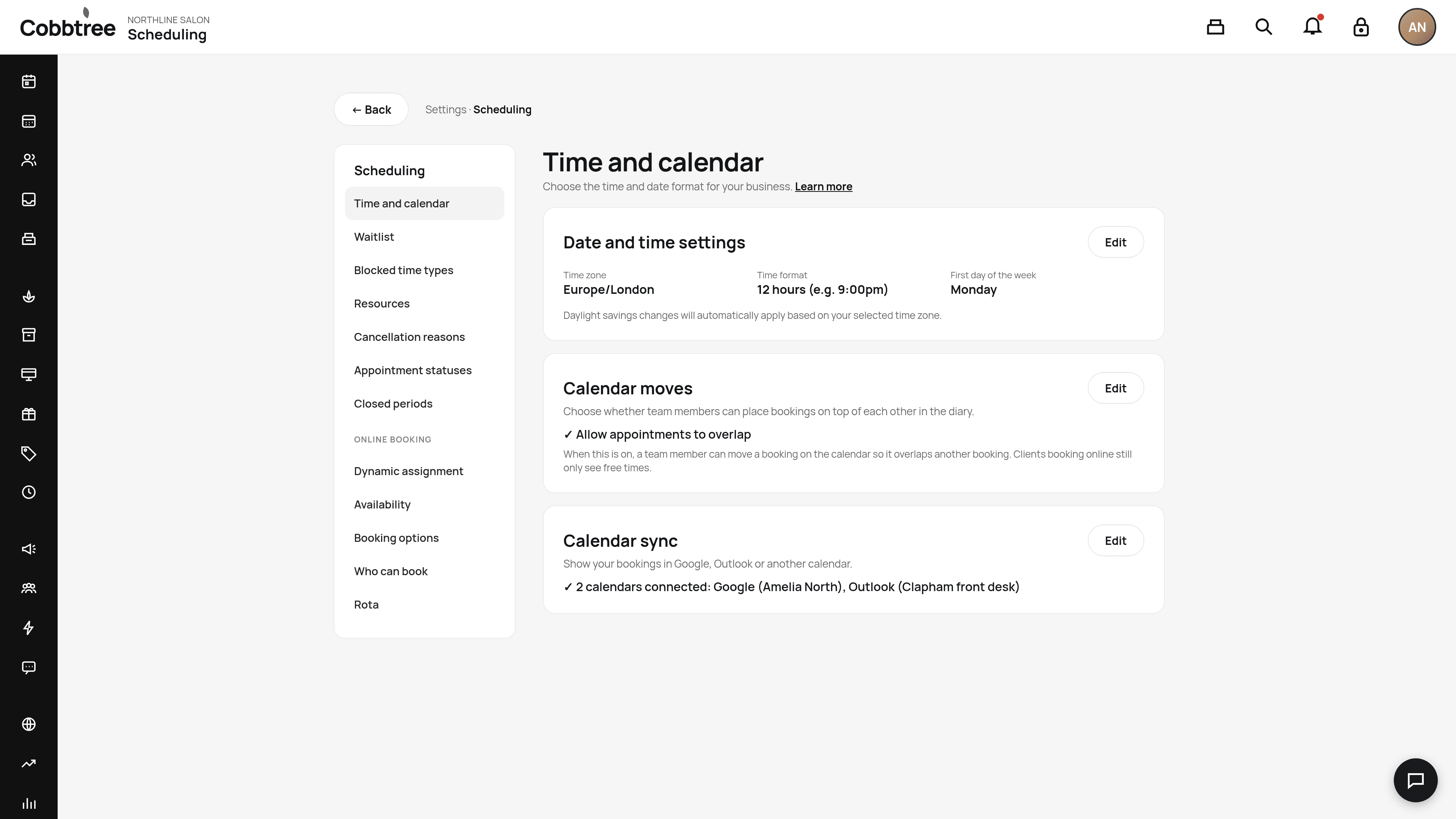
Go to Settings → Scheduling → Blocked time types to create your own types, such as Lunch or Training.
Closed periods
For holidays when the whole business is closed, use Settings → Scheduling → Closed periods.
Related: Mark someone sick or on time off · Set working hours with Rota · Set your opening hours
Was this article helpful?