
Calendar and appointments
Reschedule or cancel an appointment
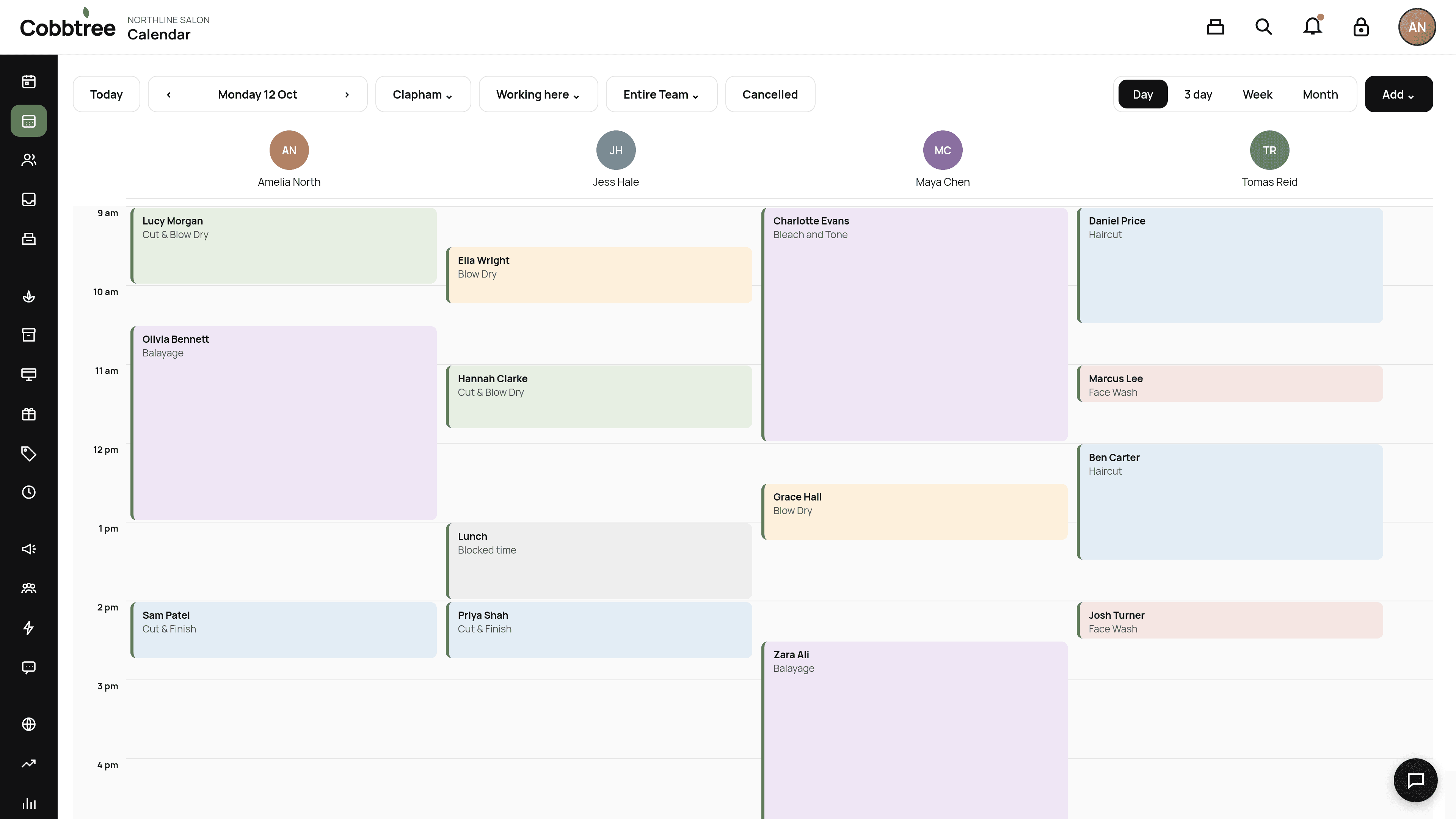
Last updated 12 October 2026
Rescheduling keeps the original booked price. Moving an appointment doesn't apply today's Smart Pricing to it.
Reschedule
- 1Open Calendar and find the appointment.
- 2Open it and change the time, or drag it to a new slot.
- 3Save.
Rescheduling keeps the original booked price. Moving an appointment doesn't apply today's Smart Pricing to it.
If Allow appointments to overlap is on in Settings → Scheduling → Calendar moves, staff can move a booking on top of another one. Clients booking online still only see free times.
Cancel
- 1Open the appointment.
- 2Choose cancel and select a reason. You can set up your reasons in Settings → Scheduling → Cancellation reasons.
- 3Confirm.
If you've set a late cancellation fee and the client has a saved card, Cobbtree can charge the fee when your policy allows it.
See cancelled appointments
Select Cancelled in the Calendar toolbar.
Related: Set a cancellation policy · No-show charges
Was this article helpful?