
Calendar and appointments
Use the waitlist
Last updated 12 October 2026
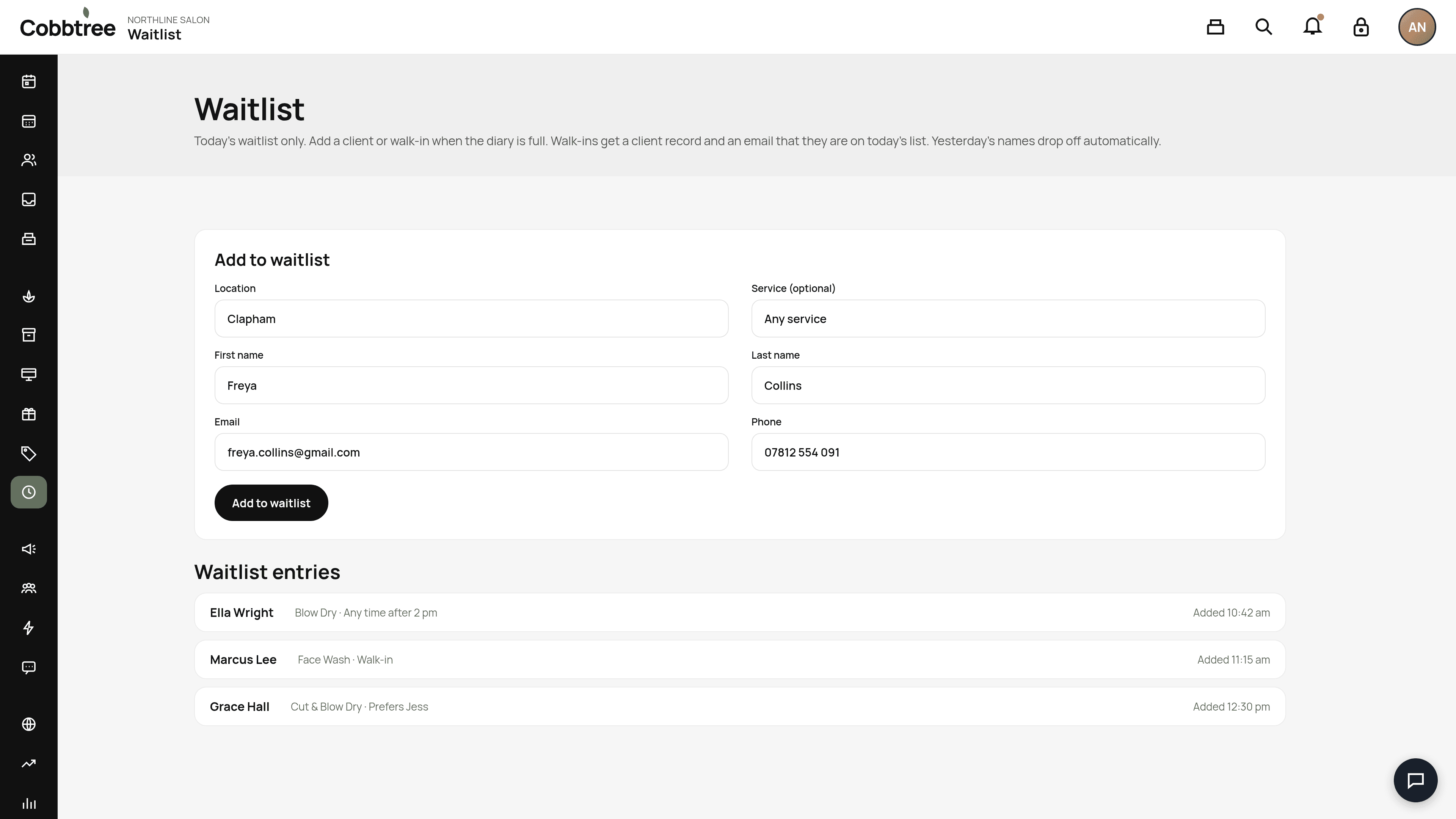
When your calendar is full, add clients or walk-ins to today's waitlist.
When your calendar is full, add clients or walk-ins to today's waitlist.
Add someone to the waitlist
- 1Select Waitlist in the left-hand menu.
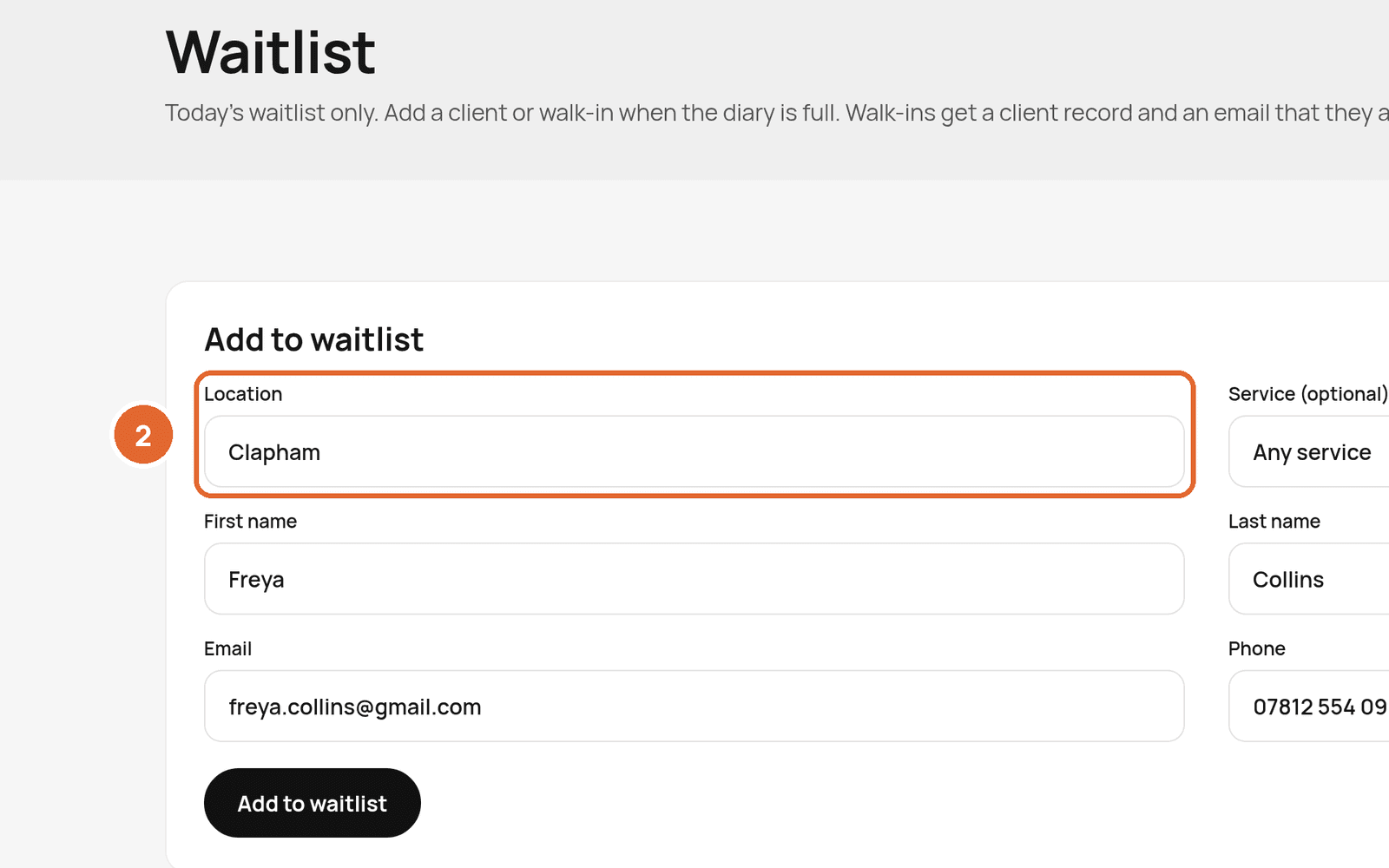
- 2Choose the Location and, if you like, a Service.
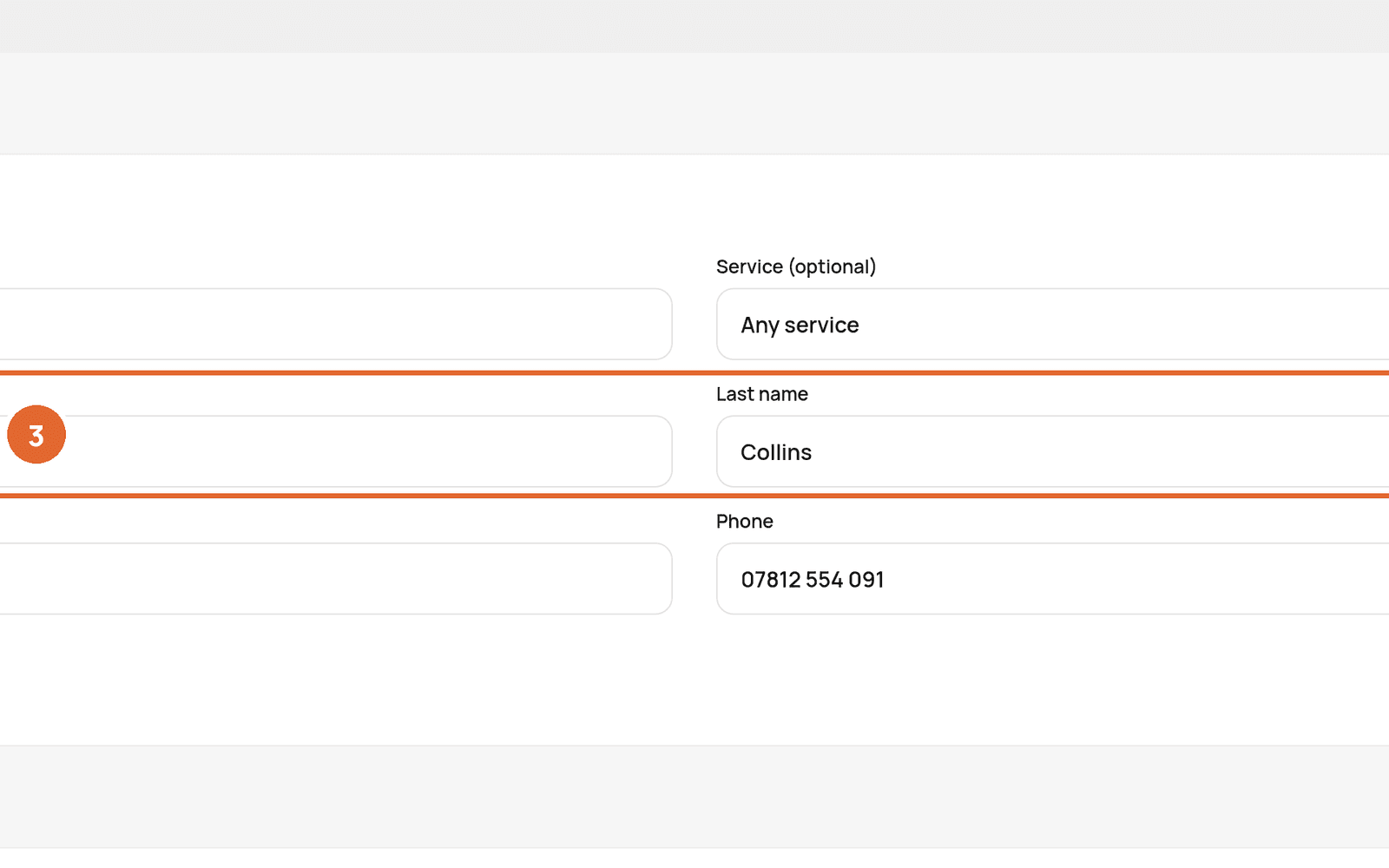
- 3Enter their First name, Last name, Email, Phone and any Notes.
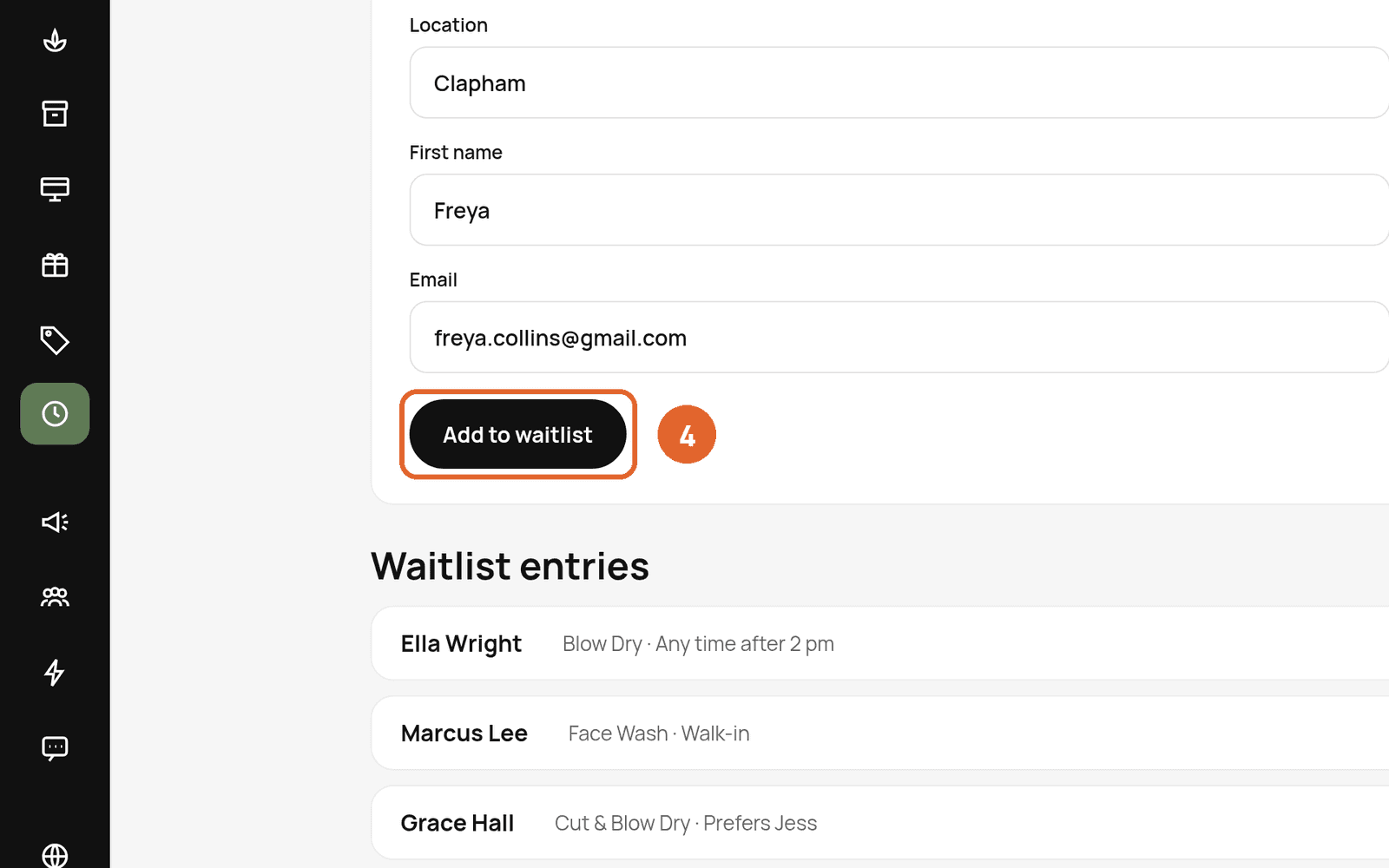
- 4Select Add to waitlist.
How it works
- The waitlist is for today only. Yesterday's names drop off automatically.
- Walk-ins get a client record and an email to say they're on today's list.
- Everyone waiting is shown under Waitlist entries.
Waitlist messages
Automations can message clients when a slot opens. See Automations: reminders and messages. Waitlist settings are in Settings → Scheduling → Waitlist.
Related: Notification settings · Automations
Was this article helpful?