
Calendar and appointments
Notification settings
Last updated 12 October 2026
Choose how Cobbtree tells you about bookings and other updates.
Choose how Cobbtree tells you about bookings and other updates.
Change your notifications
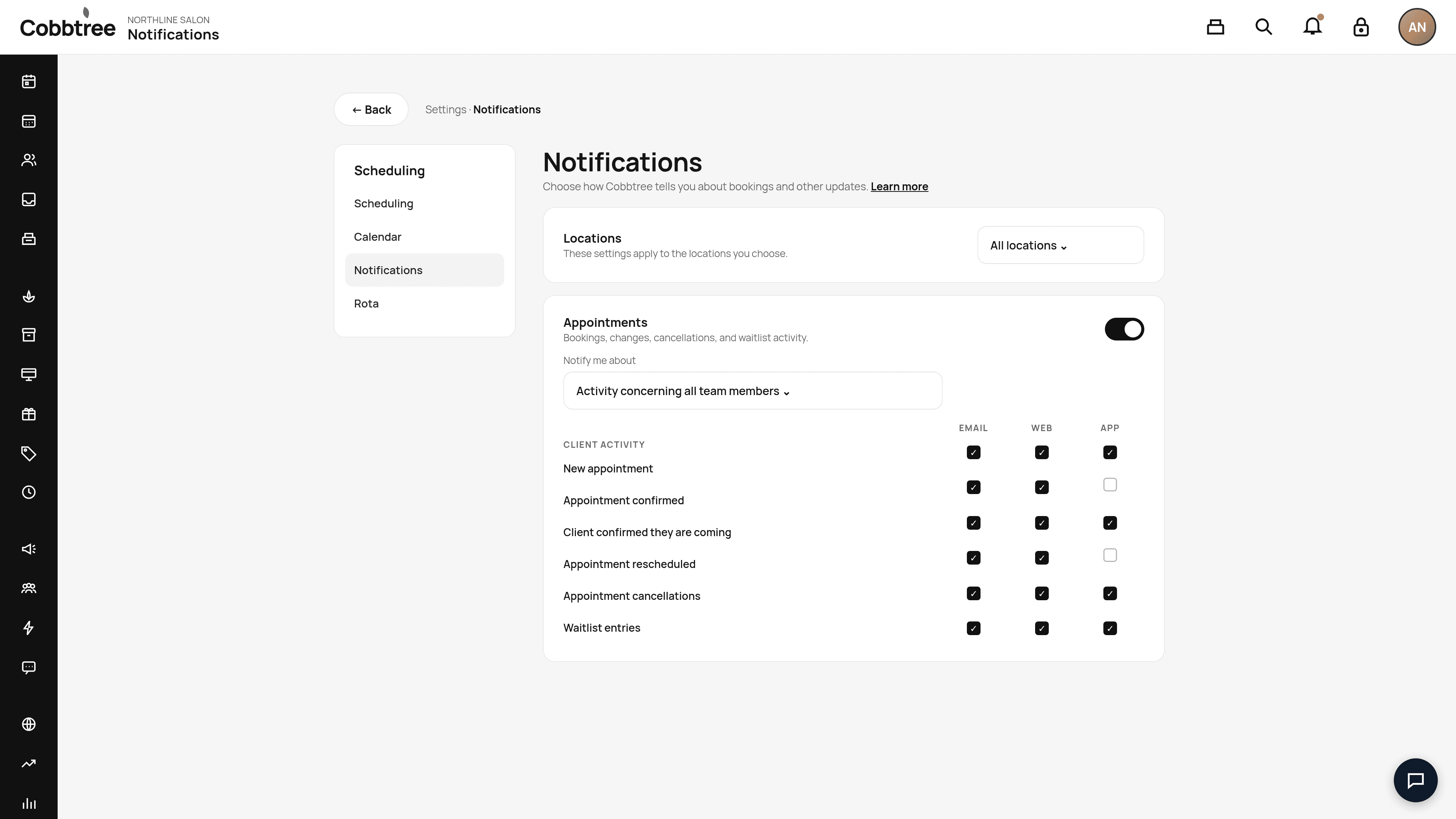
- 1Go to Settings → Notifications (under Scheduling).
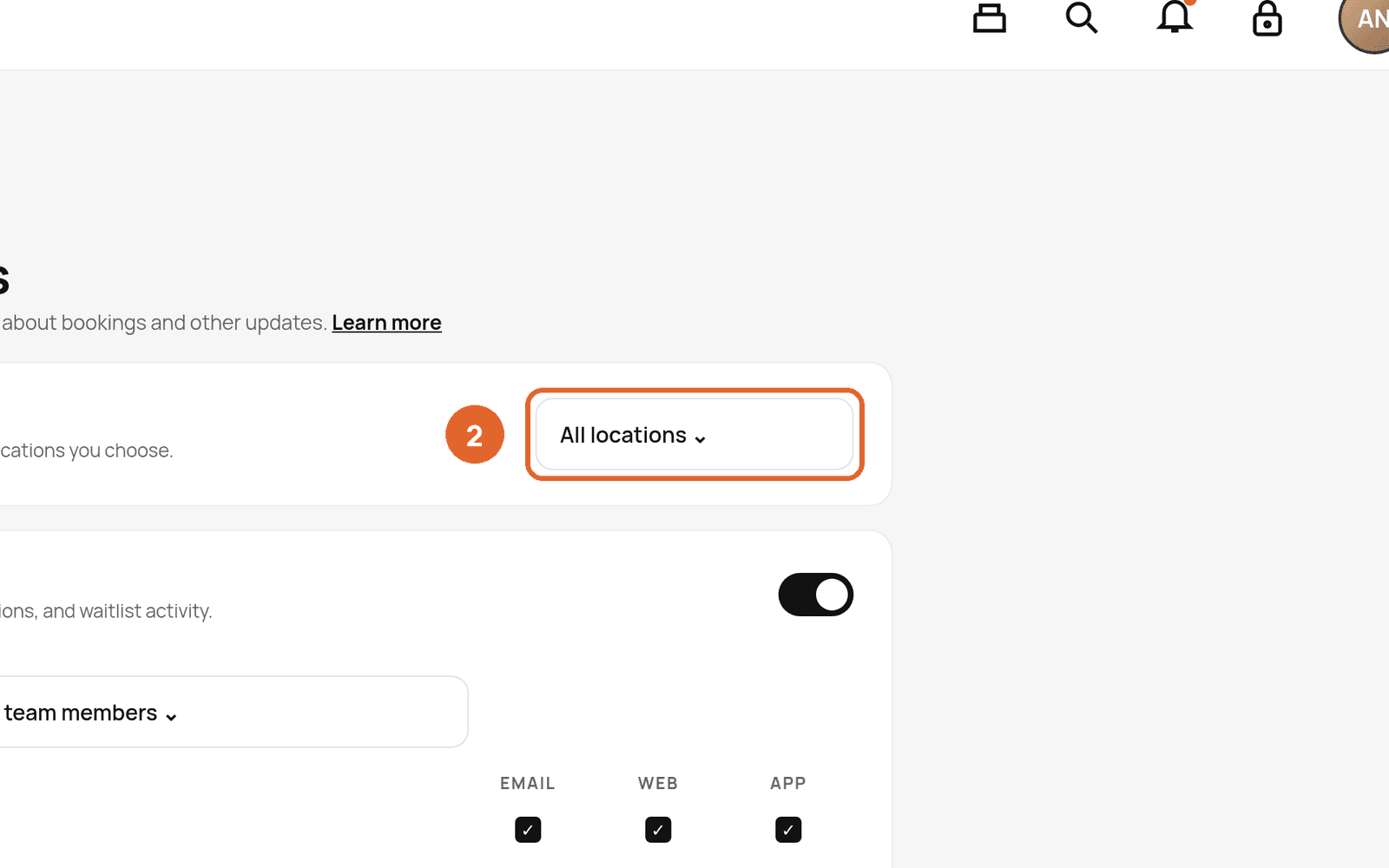
- 2Choose which locations these settings apply to, or leave All locations.
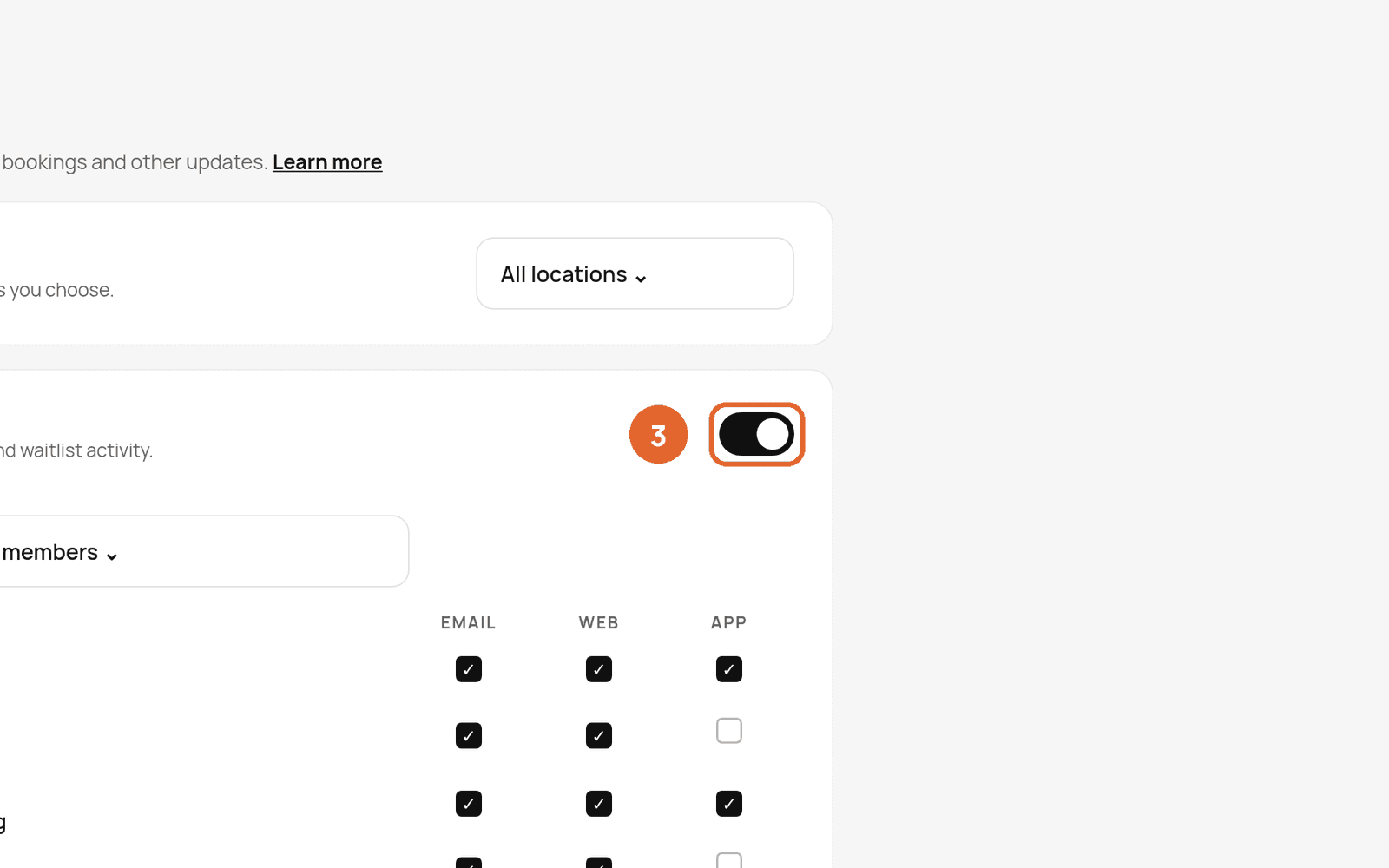
- 3Use the Appointments switch to turn all appointment notifications on or off.
- 4In Notify me about, choose whose activity you hear about, for example Activity concerning all team members.
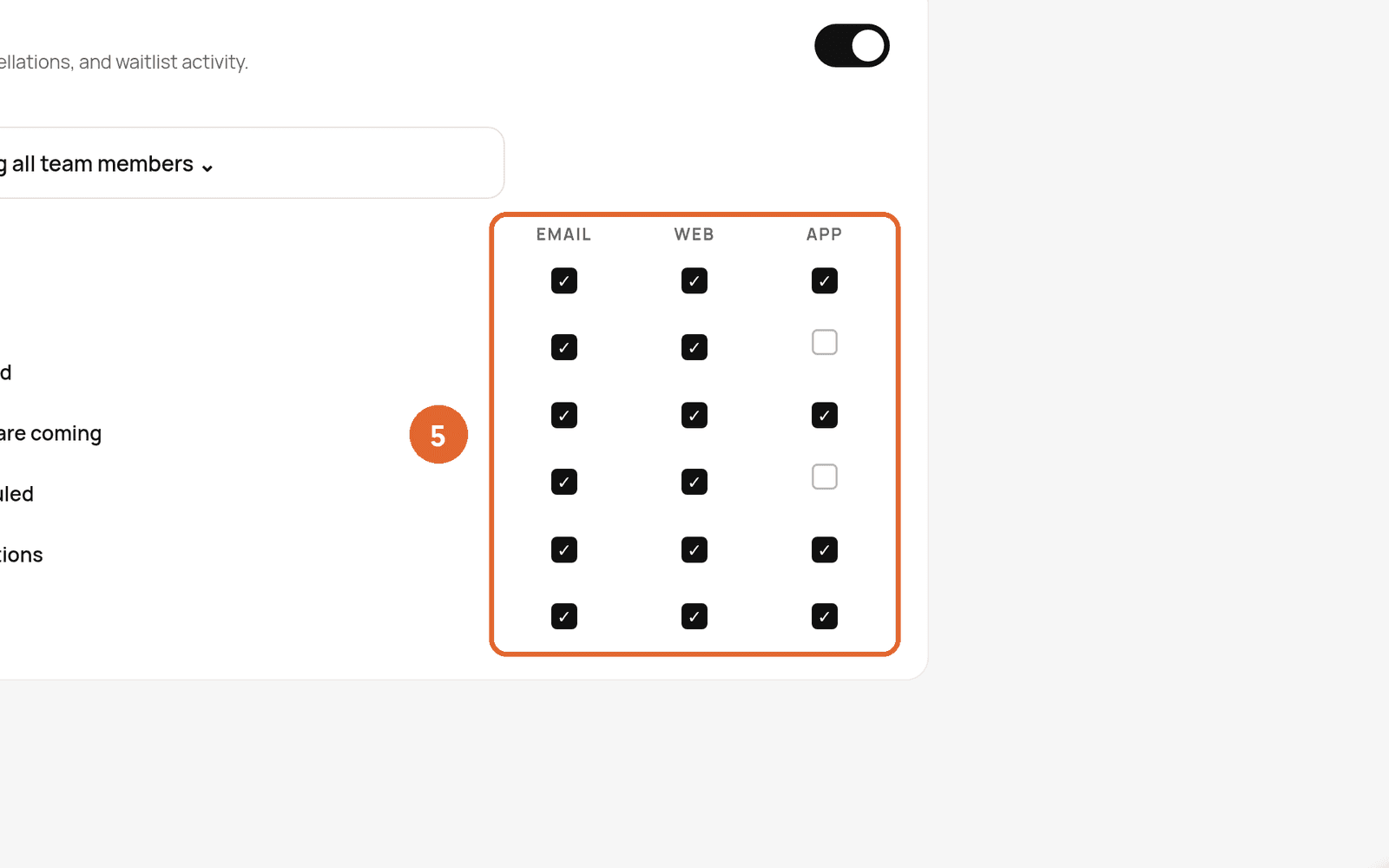
- 5Tick Email, Web or App for each type of update.
What you can be notified about
Client activity: new appointment, appointment confirmed, client confirmed they're coming, appointment rescheduled, appointment cancellations and waitlist entries.
Team member activity: new appointments made by your team, and more.
Good to know
- Web means the notifications bell at the top of partners.cobbtree.com.
- App means push notifications in the Cobbtree app.
Related: Connect another calendar · Let clients message you
Was this article helpful?