
Getting started
Add and manage your locations
Last updated 12 October 2026
A location is a place where clients can book you, such as a salon or studio. Each location has its own public page, booking link, opening hours and cancellation policy....
A location is a place where clients can book you, such as a salon or studio. Each location has its own public page, booking link, opening hours and cancellation policy. Northline Salon, for example, has two: Clapham and Shoreditch.
See your locations
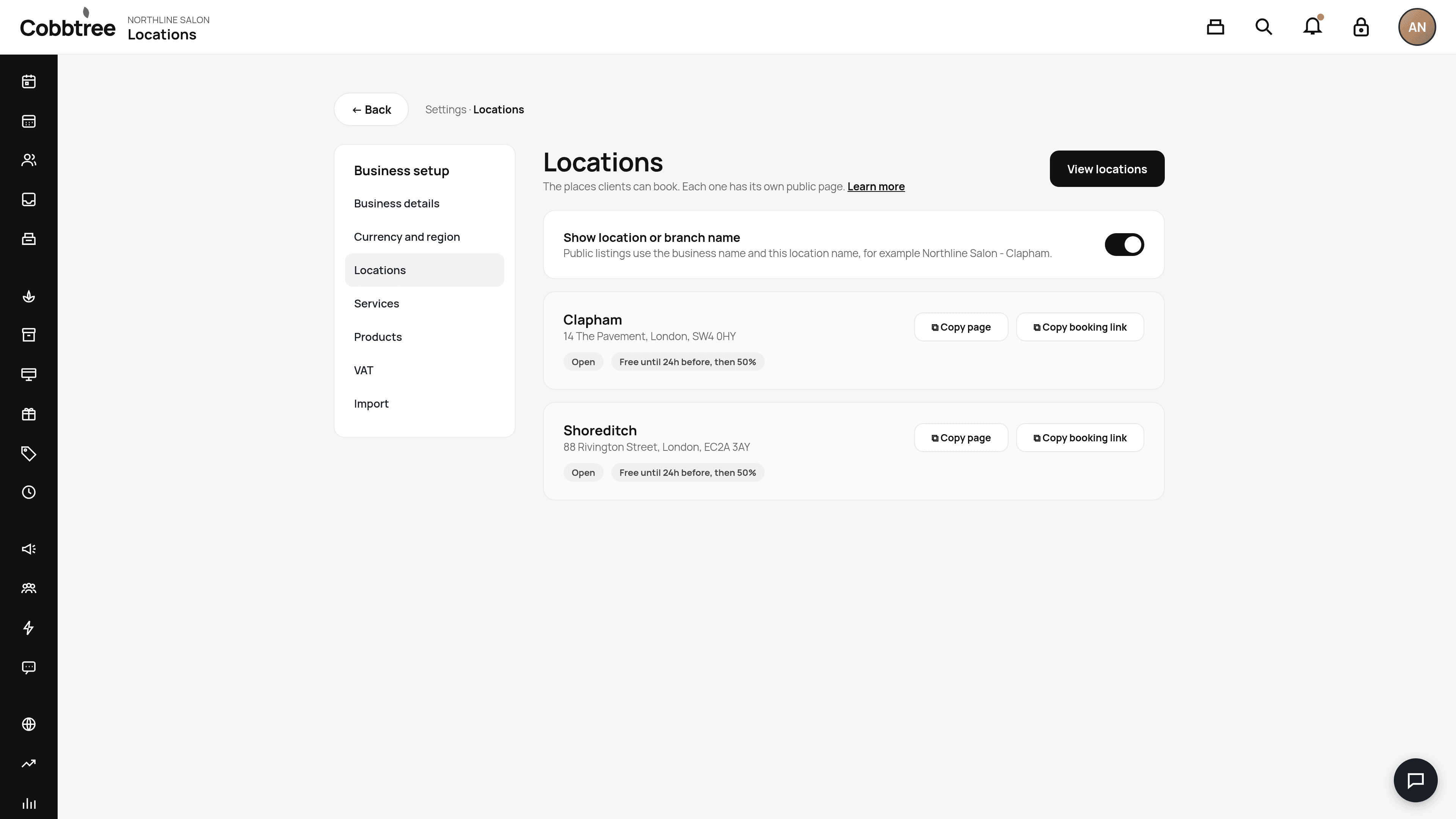
- 1Go to Settings → Locations.
- 2Each location is shown as a card with its address and status.
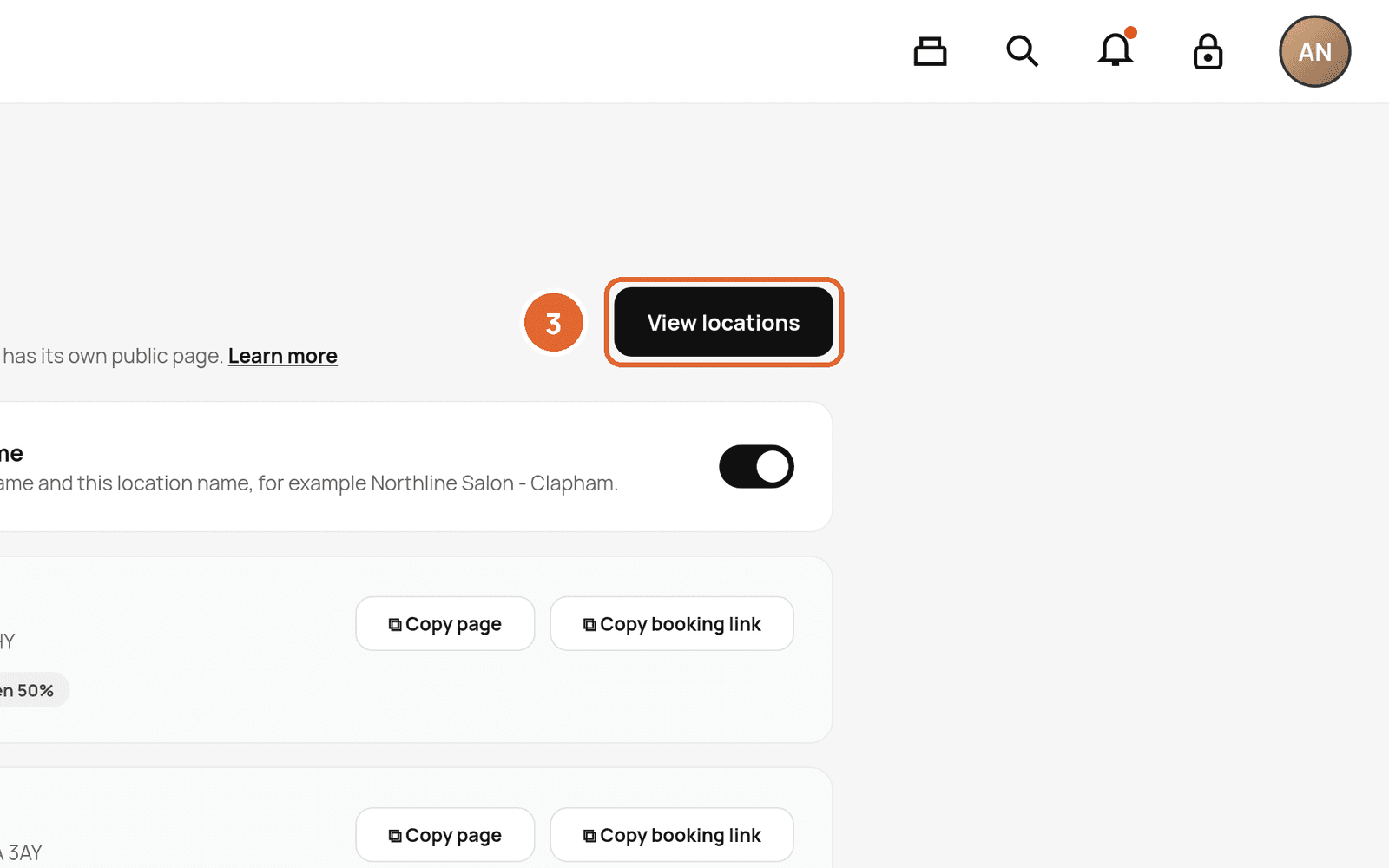
- 3Select View locations to open the full list and manage each one.
Show your branch name
Turn on Show location or branch name (2) if you want public listings to show your business name together with the location name, for example "Cobbtree - High Street". This helps when you have more than one site.
Share a location's booking link
On a location card, select Copy booking link (3) to copy a direct booking link, or Copy page to copy its public page. You can paste these into Instagram, Google or emails.
Add a new location
Good to know
- Your plan limits how many locations you can have. Cobbtree One includes 1 business location and Cobbtree Studio includes up to 2. See Choose or change your plan.
- Each location's tag (for example "Free until 24h before, then 50%") shows its cancellation policy.
- Stock belongs to a location. Products in Shoreditch can't be sold in Clapham.
Related: Set your opening hours · Set a cancellation policy
Was this article helpful?