
Getting started
Set your opening hours
Last updated 12 October 2026
Opening hours belong to each location. They show on your public profile and are the usual working hours for your team.
Opening hours belong to each location. They show on your public profile and are the usual working hours for your team.
Change opening hours
- 1Go to Settings → Locations, then View locations, and open the location (for example Clapham).
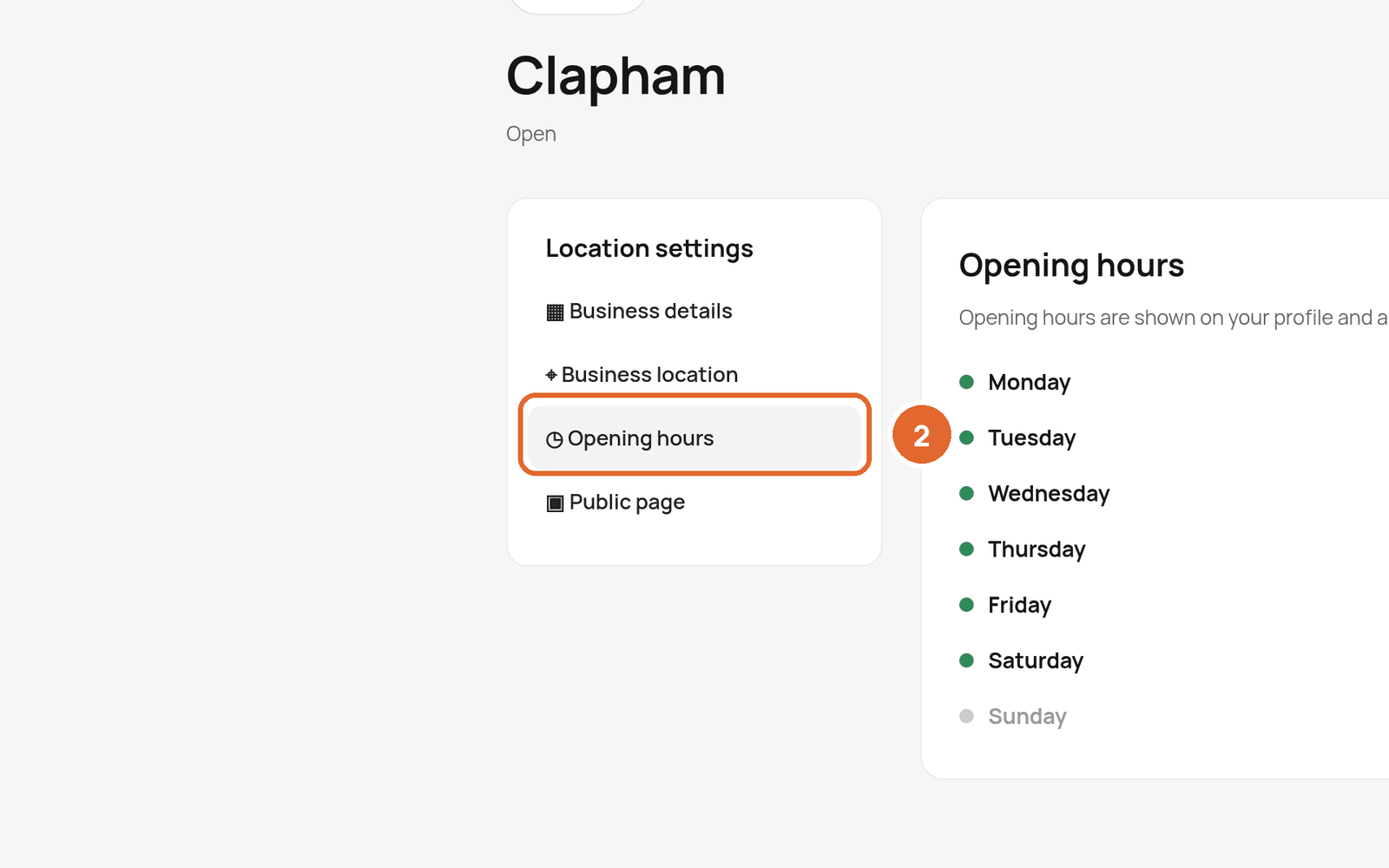
- 2In Location settings on the left, select Opening hours.
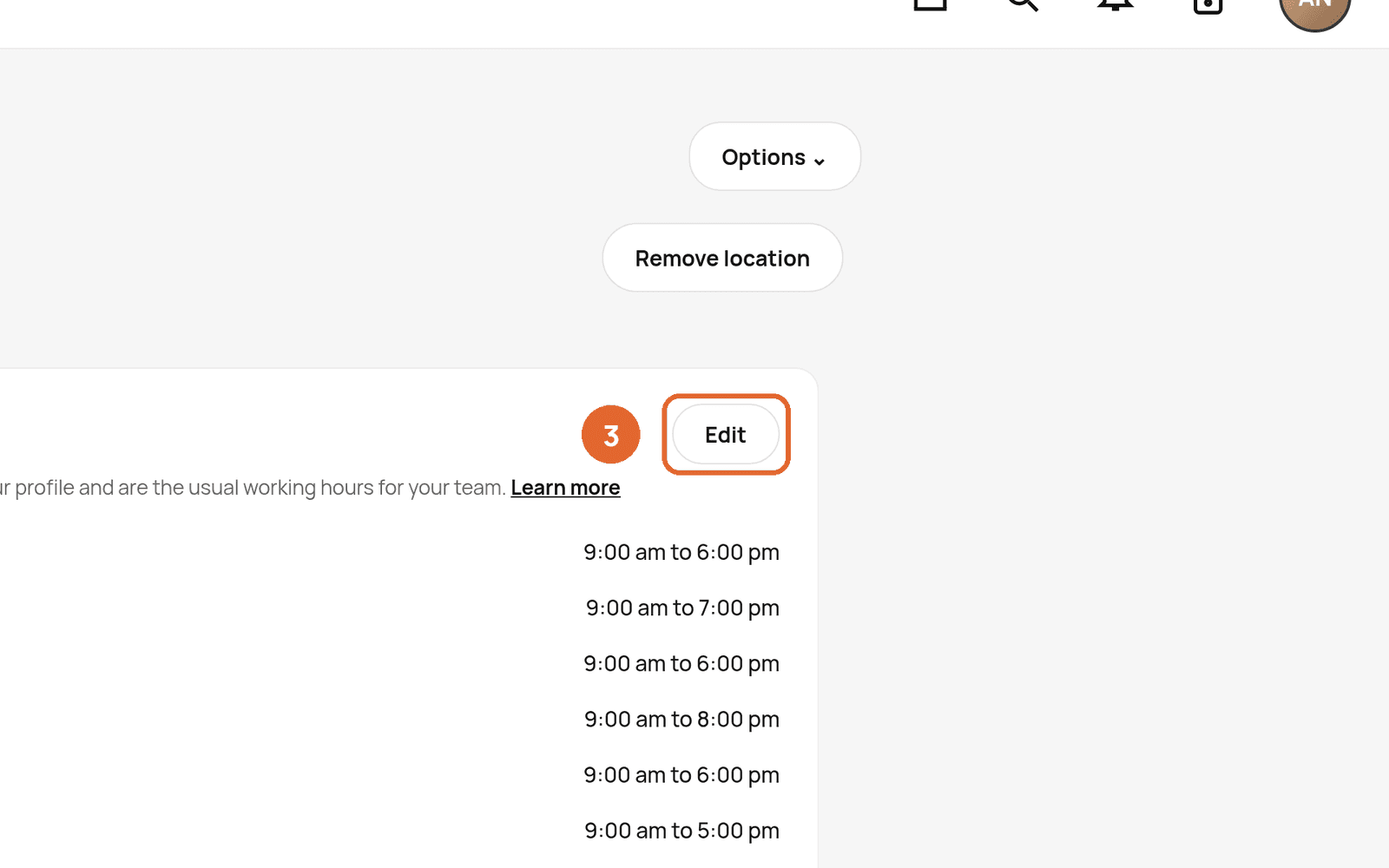
- 3Select Edit.
- 4Set the times for each day, or mark a day as closed.
- 5Save your changes.
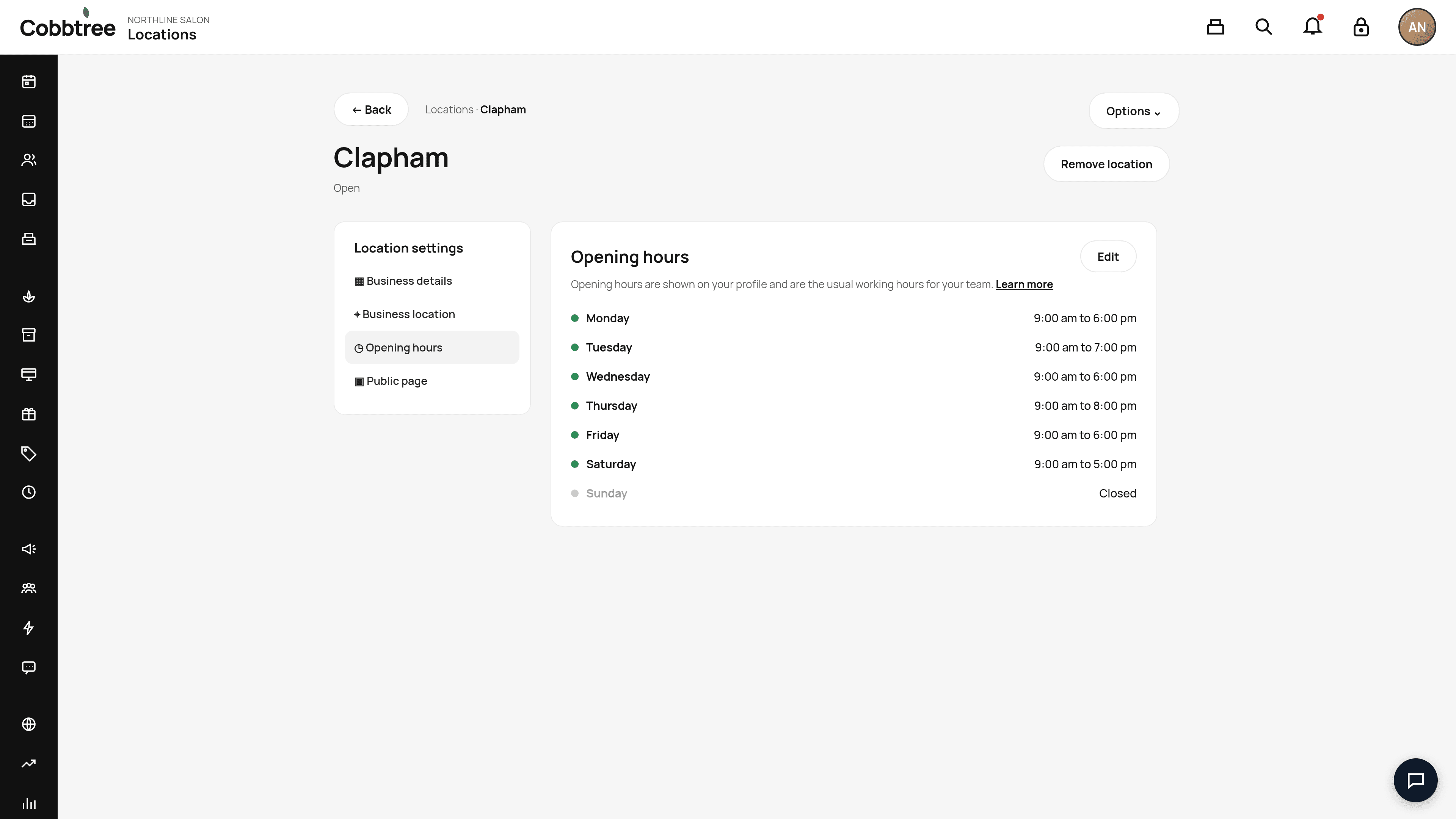
A green dot next to a day means you're open. A grey dot means Closed.
How opening hours affect bookings
- Team working hours still decide who can take an appointment. If someone is on the rota outside opening hours, Cobbtree follows their schedule.
- Customers only ever see times that can really be booked.
Closures and holidays
Set one-off closures in Settings → Scheduling → Closed periods.
Also on this page
In Location settings you can also edit the location's Business details, Business location (address) and Public page. To remove a location, use Remove location at the top right. Only do this if you're sure.
Related: Add and manage your locations · Set team working hours
Was this article helpful?