
Getting started
Create and manage your services
Last updated 12 October 2026
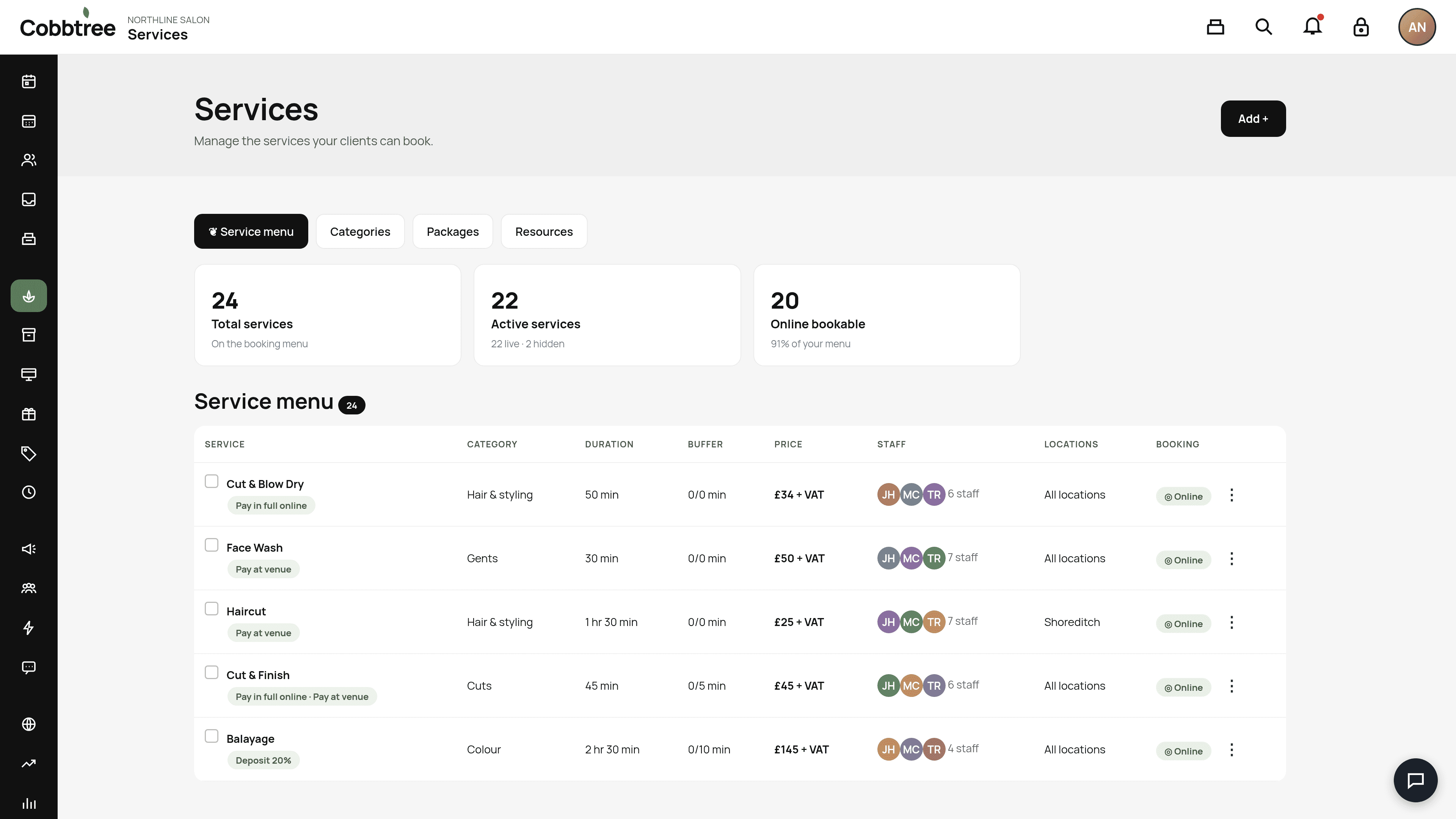
Services are the treatments clients can book, each with a price and duration. Your Service menu shows them all, with their category, duration, buffer time, price, staff,...
Services are the treatments clients can book, each with a price and duration. Your Service menu shows them all, with their category, duration, buffer time, price, staff, locations and whether they can be booked online.
Add a service
- 1Select Services in the left-hand menu.
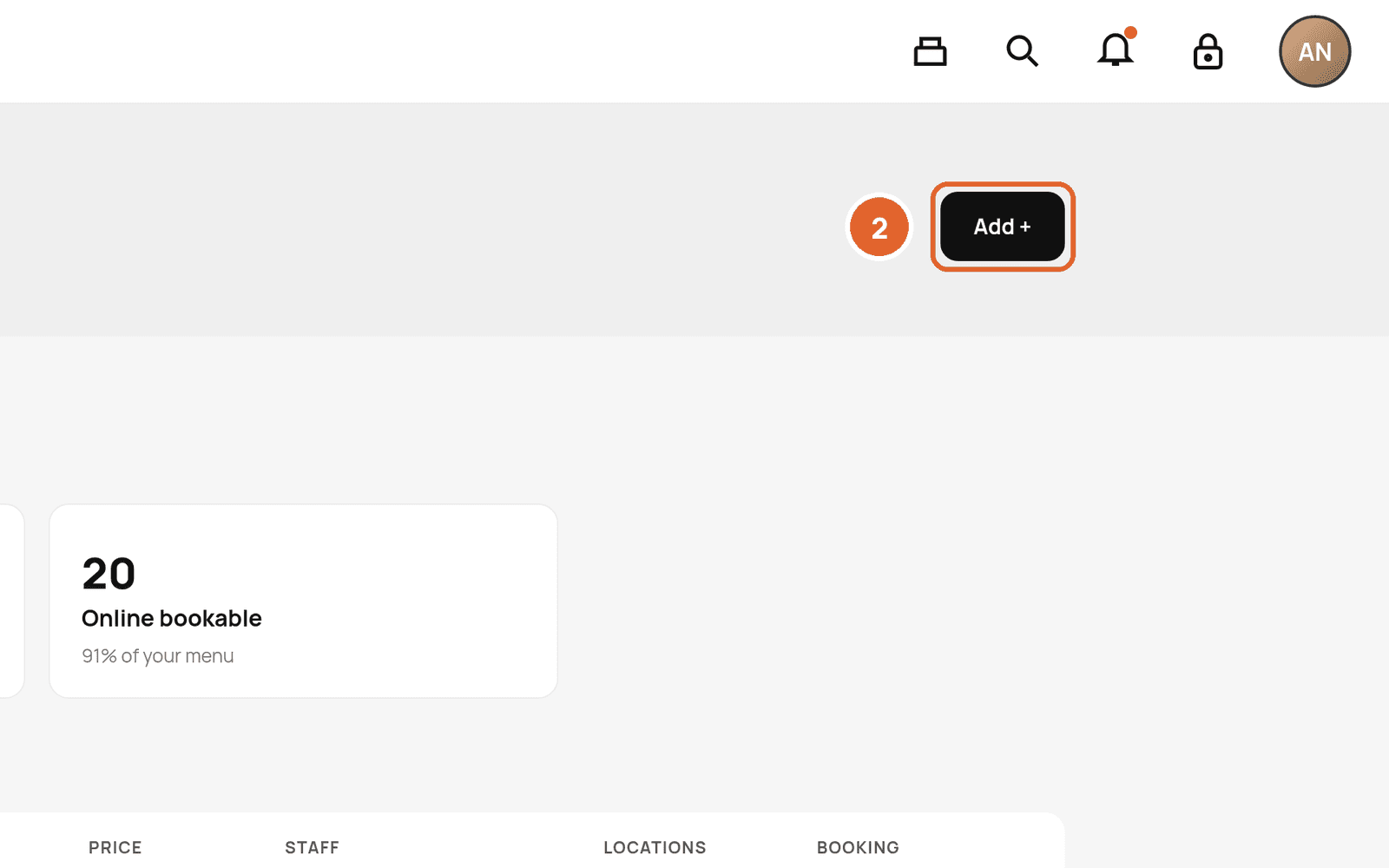
- 2Select Add + at the top right.
- 3Enter the name, duration, price and VAT. Choose which team members can do it and where it's offered.
- 4Choose whether it can be booked online.
- 5Save.
Find your way around
- Tabs: Service menu, Categories, Packages and Resources. 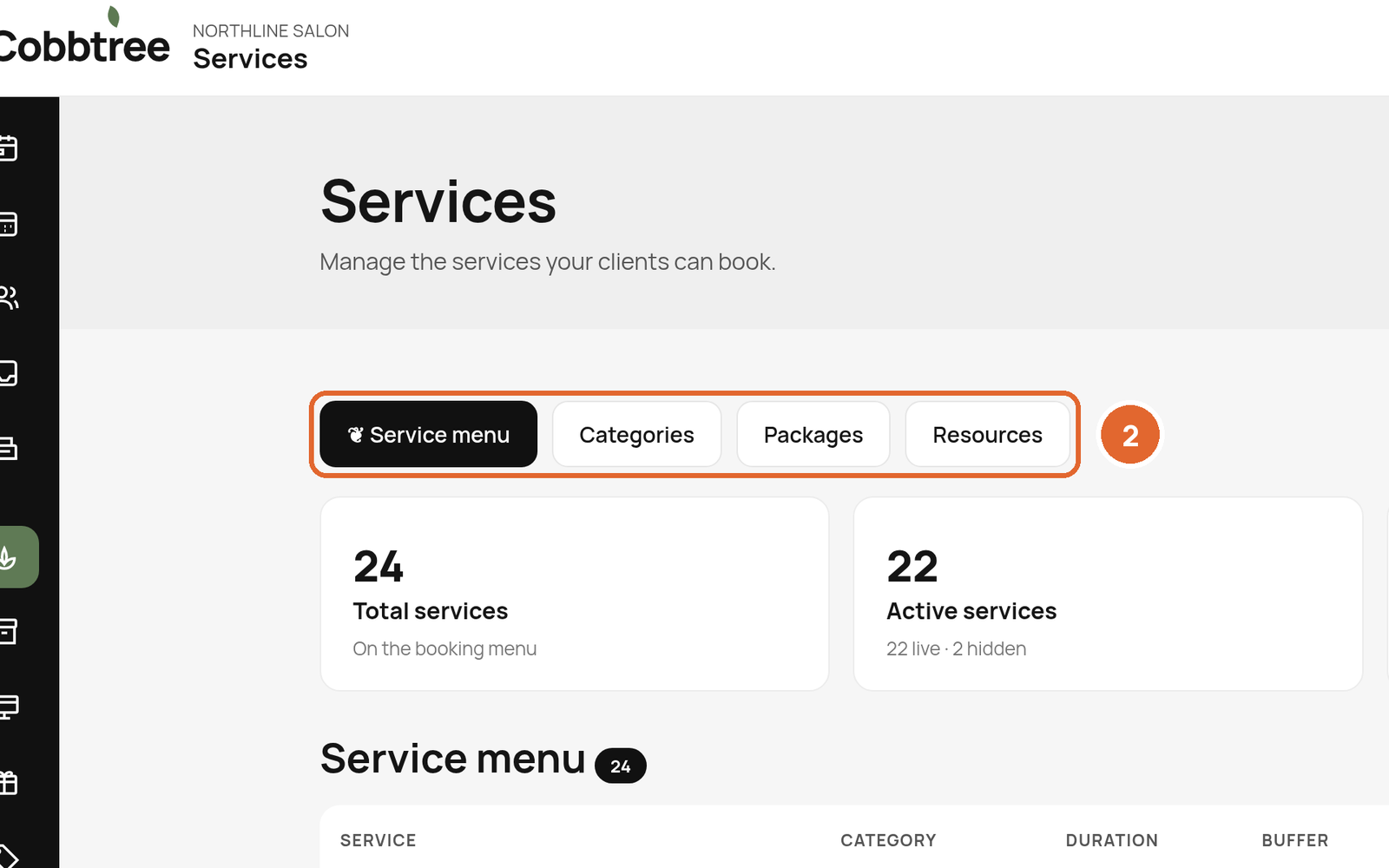
- Row menu: select the three dots on a service to edit or reorder it. 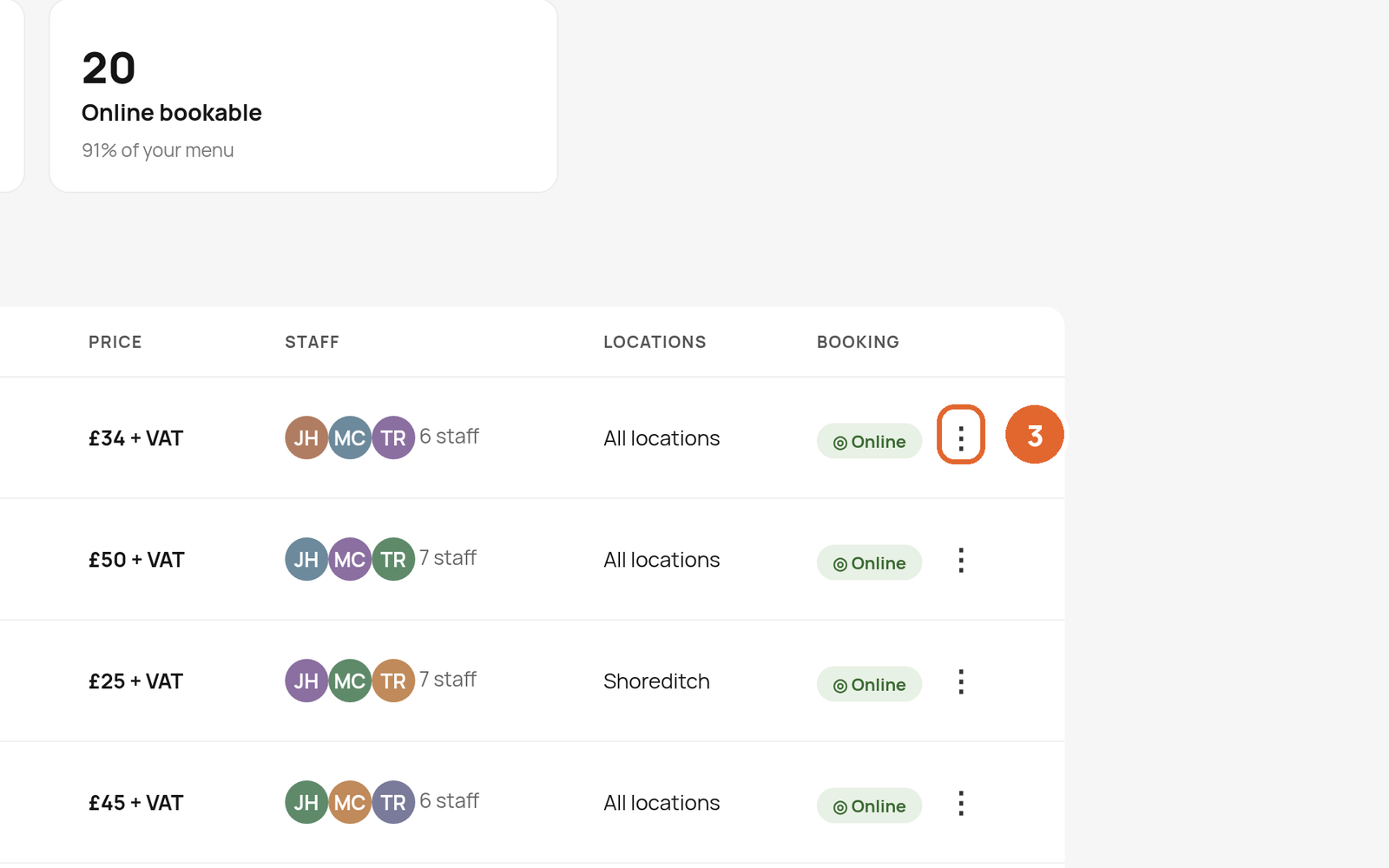
- Online badge: shows the service can be booked online. 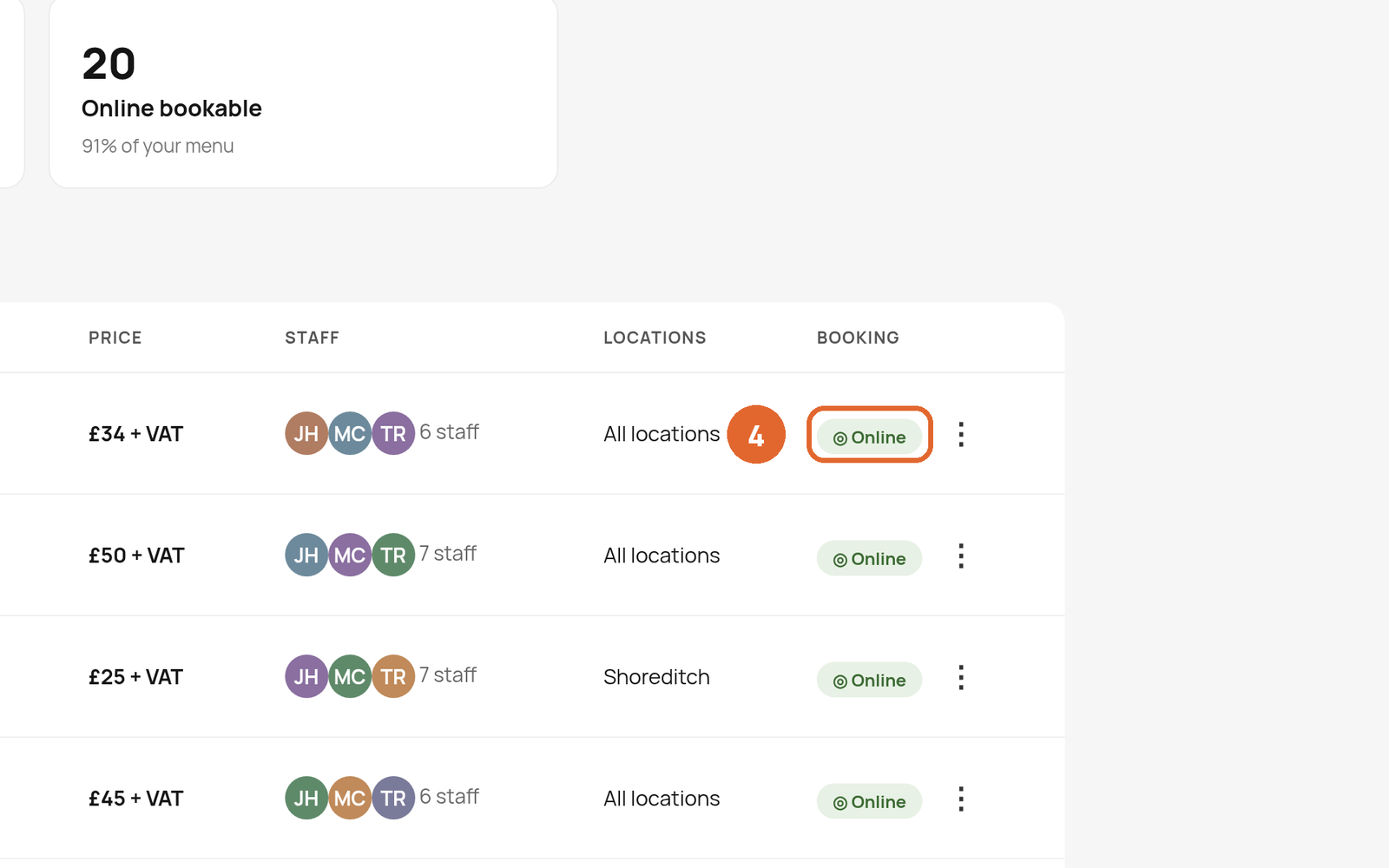
- Each service also shows its payment rule, such as Pay at venue or Pay in full online.
- The cards at the top show Total services, Active services and how many are Online bookable.
What your customers see
Services you can book online appear on your public profile. If Smart Pricing has a cheaper slot coming up in the next 14 days, customers see a From price. Not every time is that price.
Good to know
Related: Service add-ons · Take a deposit · Smart Pricing
Was this article helpful?