
Getting started
Start here: set up Cobbtree in about 10 minutes
Last updated 22 October 2026
Cobbtree is your calendar, till, Marketplace listing and website in one place. This checklist gets a new account ready to take bookings. Do it on the web at partners.cobbtree.com.
Cobbtree is your calendar, till, Marketplace listing and website in one place. This checklist gets a new account ready to take bookings. Do it on the web at partners.cobbtree.com.
There is no separate setup wizard. Work through the list below, then use Today for the day-to-day shortcuts.
Before you start
You need a Cobbtree for Business account. If you picked a plan on cobbtree.com before signing up, that plan is already on the account, including any free trial.
Your setup checklist
- 1Sign in at partners.cobbtree.com with your work email and password. See Sign in to Cobbtree for Business.
- 2Check your business details. Go to Settings → Business details and add your name, logo and links. This is what customers see.
- 3Check currency and region. Go to Settings → Currency and region. You cannot change the currency after a booking or a payment, and past amounts stay in the currency you used.
- 4Add your locations and opening hours. Go to Settings → Locations.
- 5Create your services. Open Services and select Add +.
- 6Add your team and their working hours. Go to Settings → Team, then open Rota. Each person needs working hours before they appear in online booking.
- 7Connect Stripe so you can take card payments, deposits and no-show fees. Go to Settings → Payments.
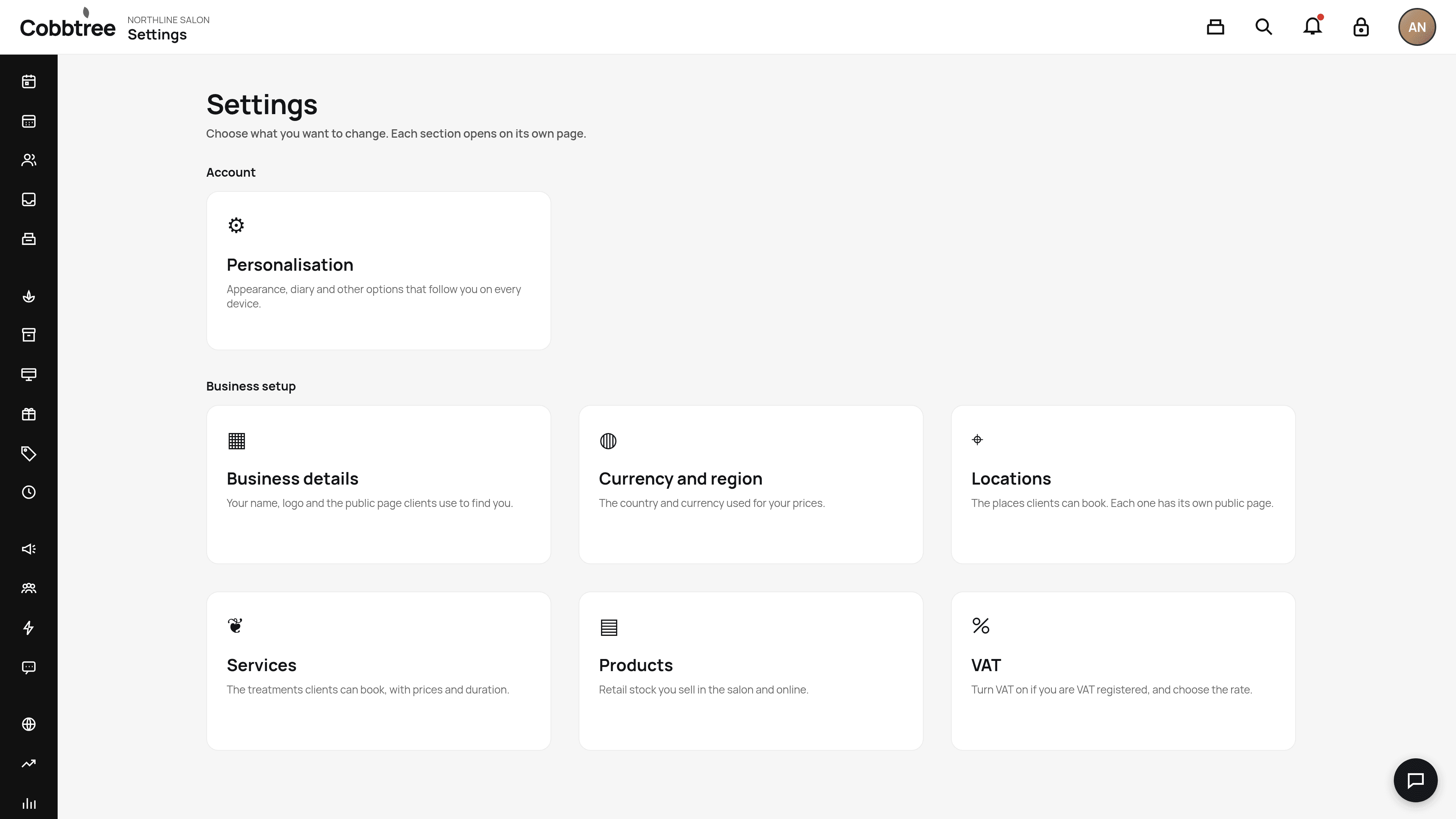
Your Today page
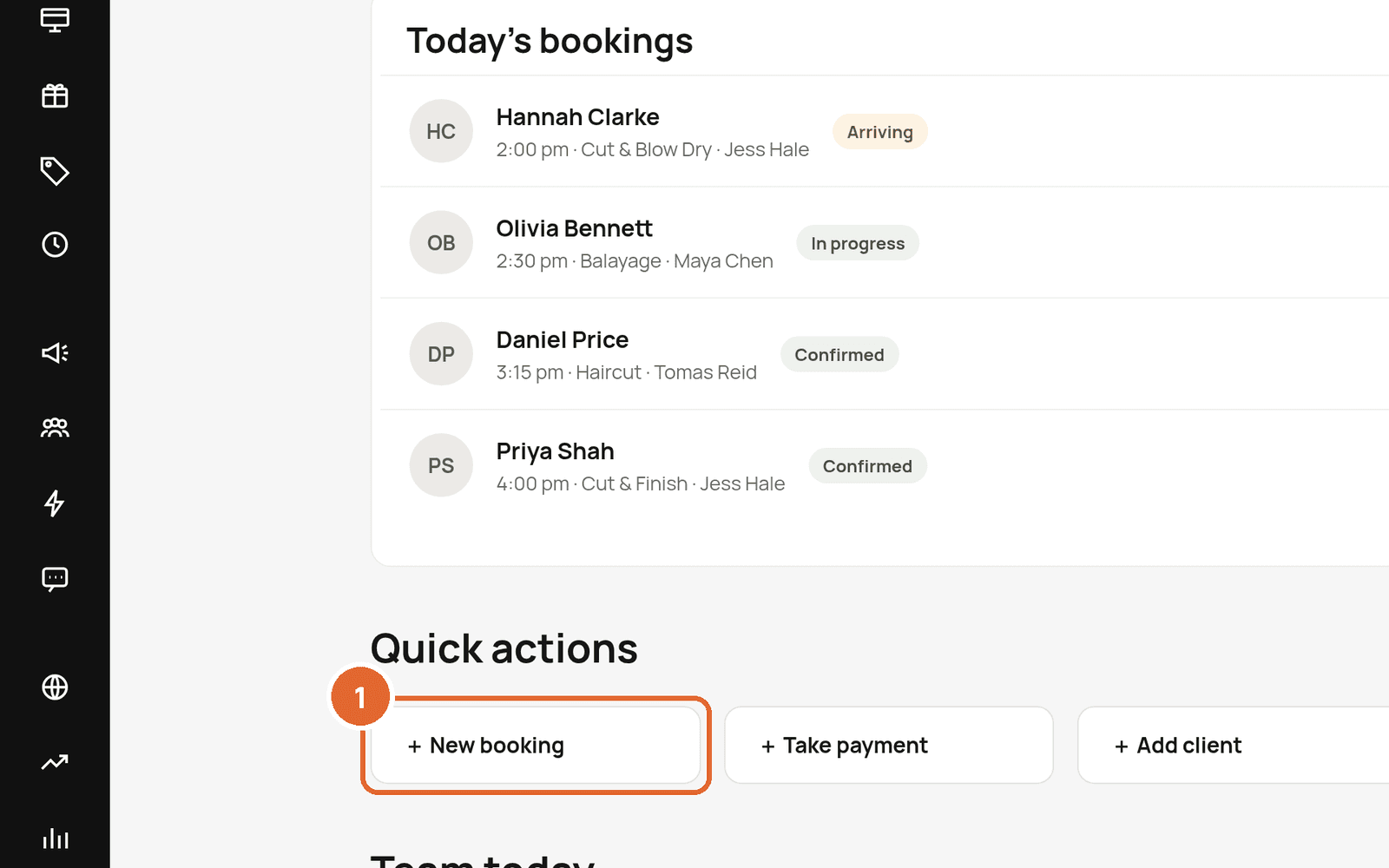
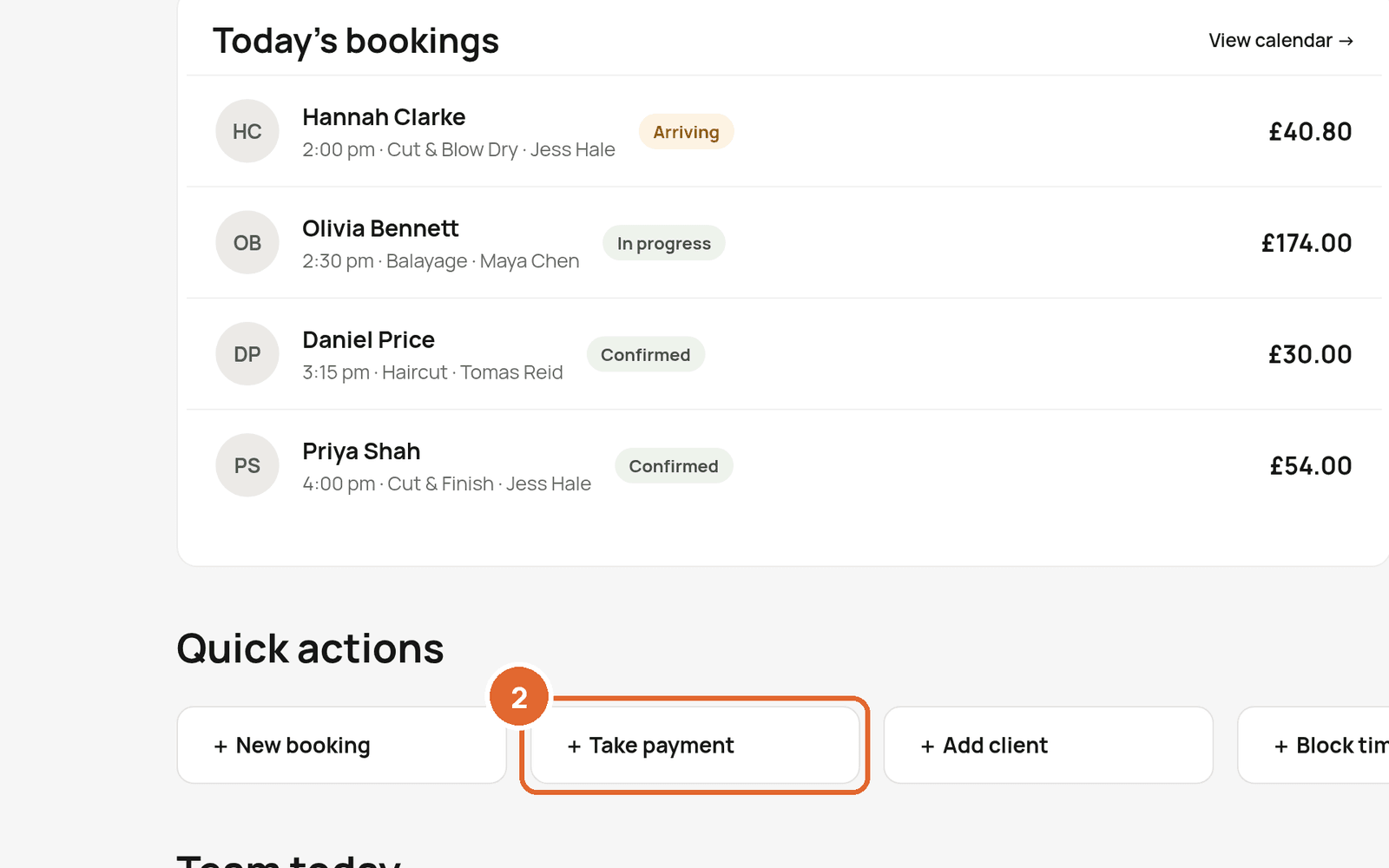
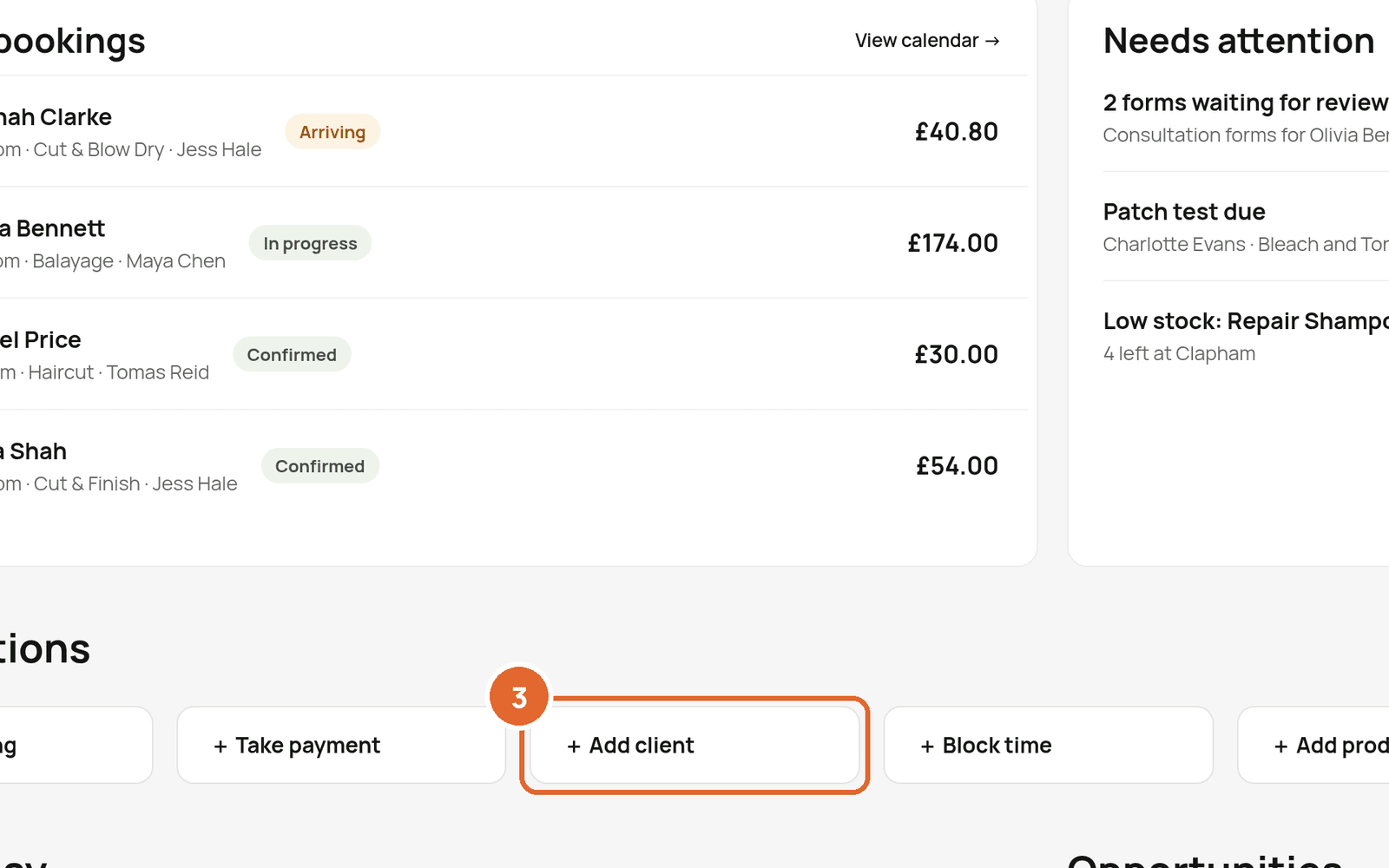
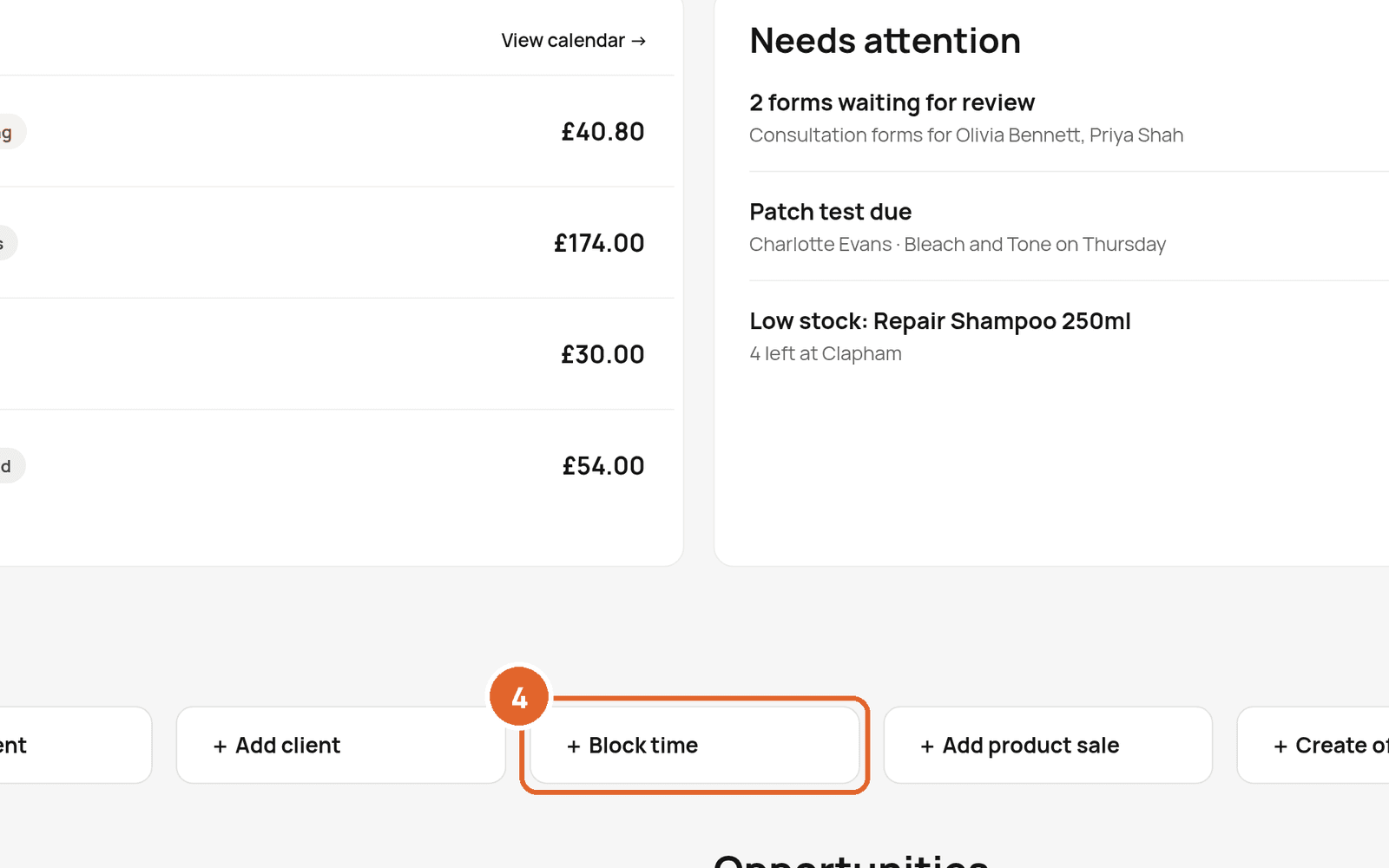
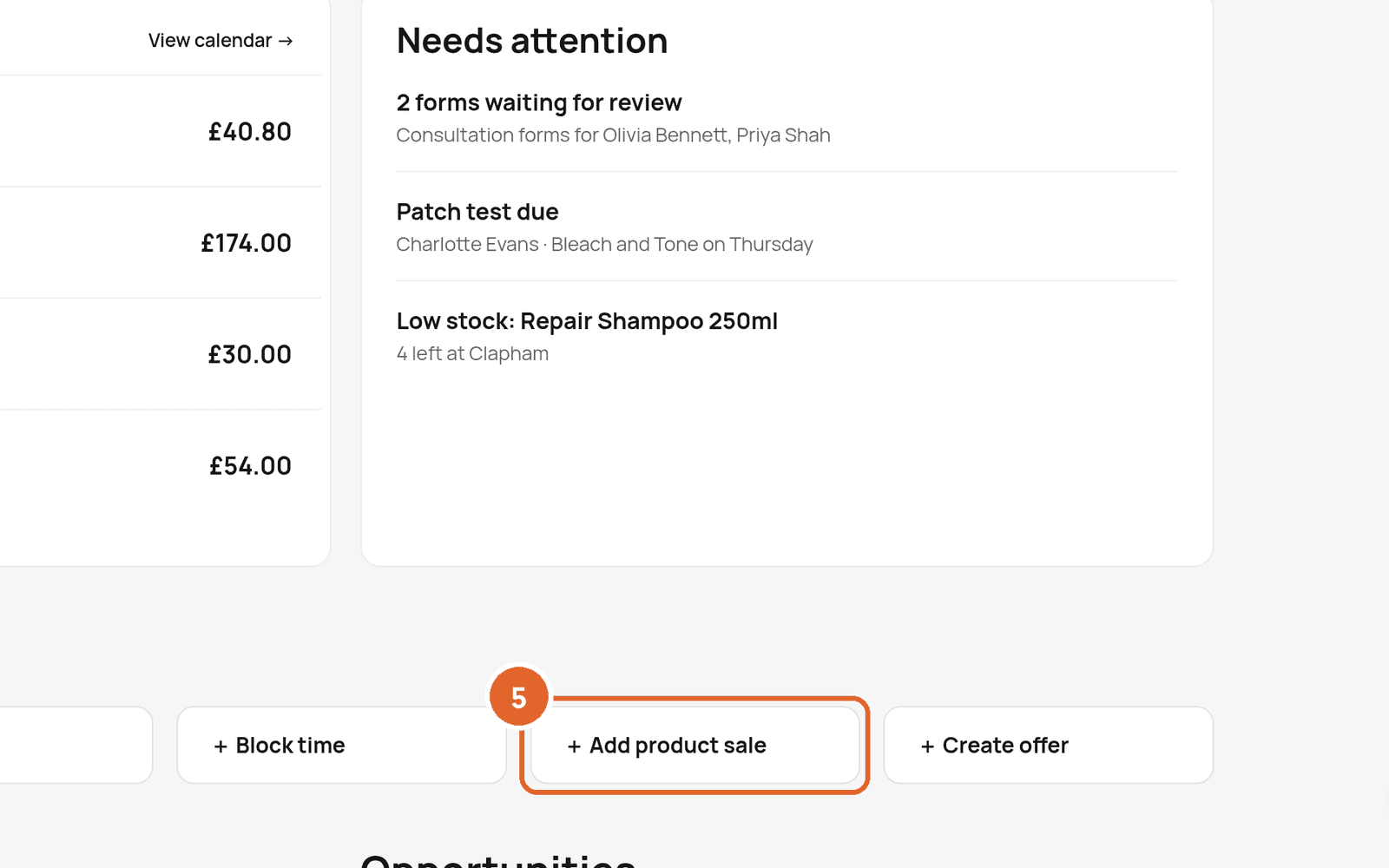
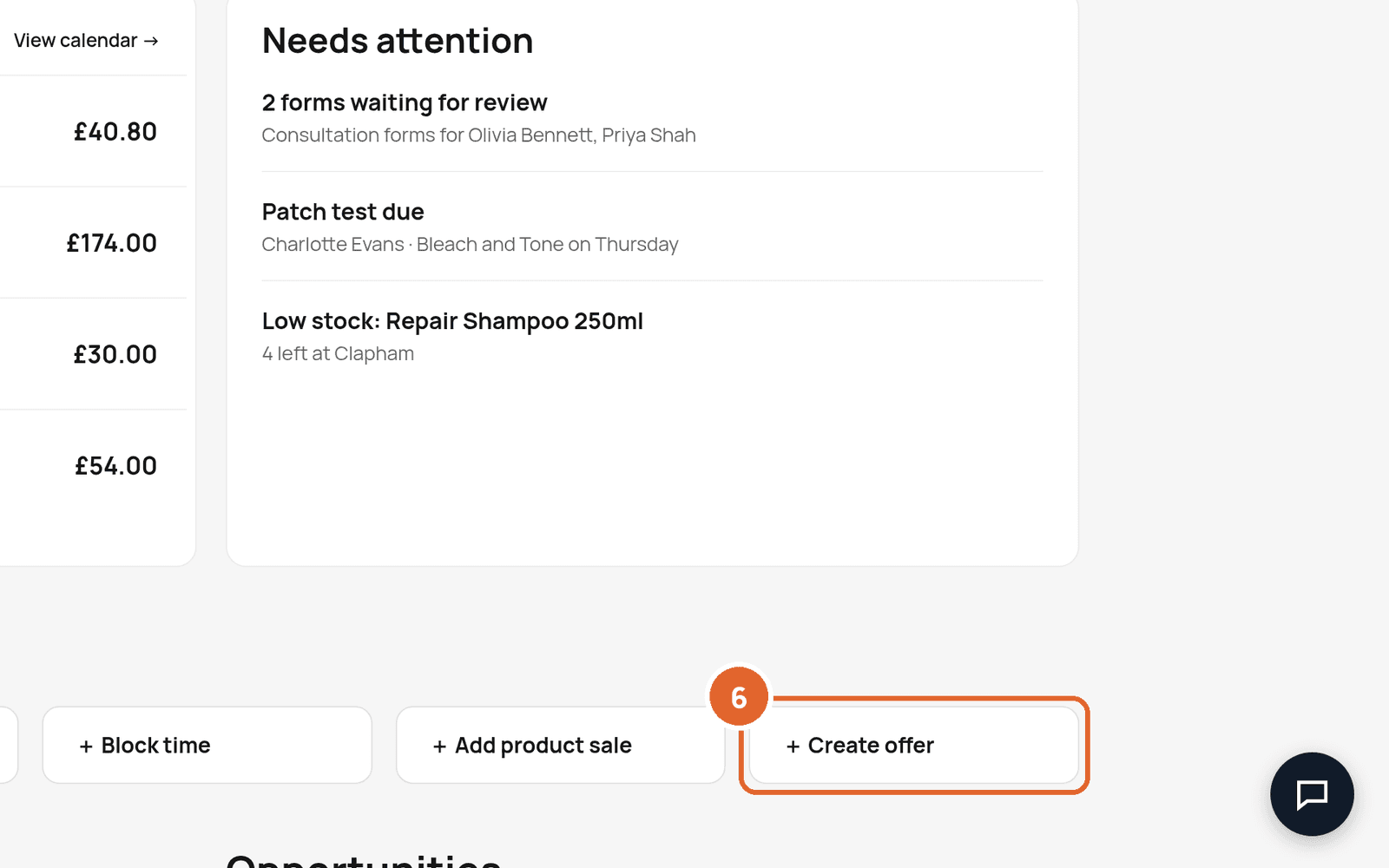
After you sign in you land on Today. The Quick actions row is for the jobs you do most often:
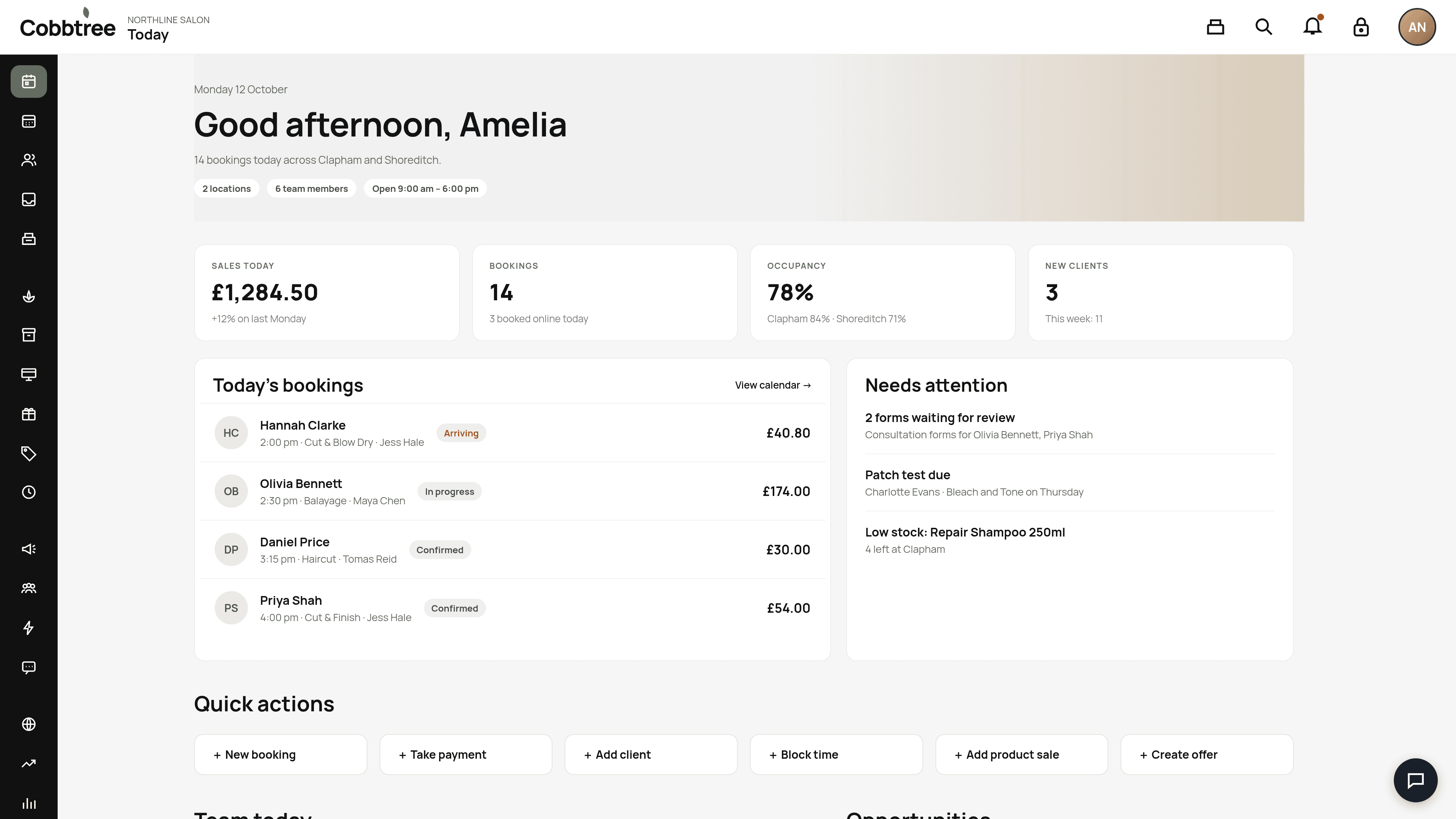
- 1New booking
- 2Take payment
- 3Add client
- 4Block time
- 5Add product sale
- 6Create offer
What your customers see
Once a location is listed, customers can find you on cobbtree.com and book from your website or the Cobbtree app. Being listed and taking online bookings are separate: you can be listed without taking online bookings, and you can take bookings without appearing in search.
Related: Set up your business profile · Add your locations · Create a service · Add your team
Was this article helpful?